Admin Dashboard Overview
A quick tour of the Global Action workspace so you know where everything lives before diving into the detailed guides.
What You Will Learn
- How to reach the Admin workspace
- What each item in the top navigation does
- What is available from your account menu
- Where to go next depending on the task at hand
1 Open the Workspace
Once you are signed in as an Admin, you will land on the workspace dashboard shown below. This is the home base for every feature covered in this manual.
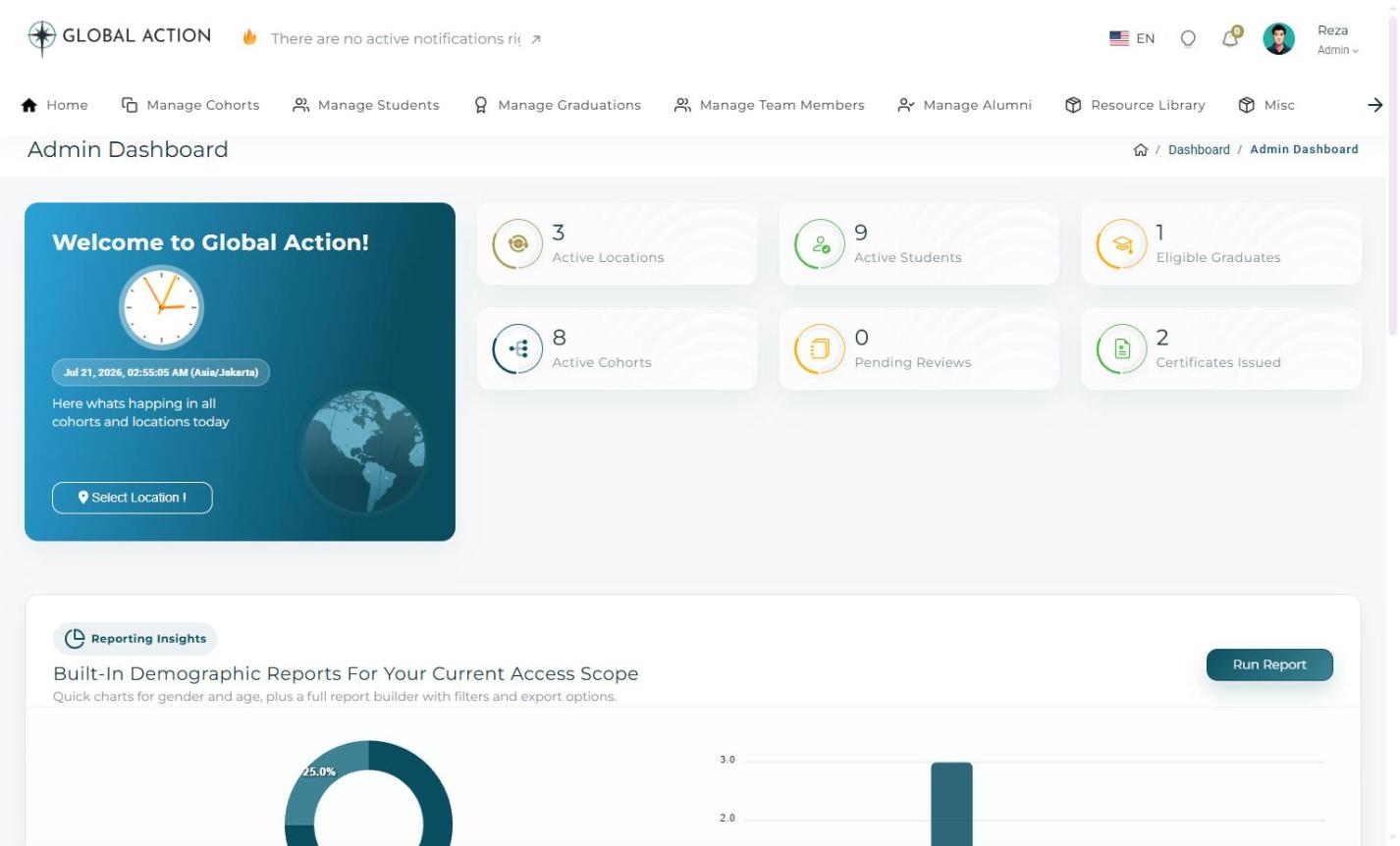 Figure 1. The Admin Dashboard home screen, with the main navigation bar across the top.
2 Understand the Top Navigation
The navigation bar gives you quick access to every major area of the platform:
- Manage Cohorts - create and oversee training cohorts.
- Manage Students - register students and review their profiles.
- Manage Graduations - issue certificates and approve completed modules.
- Manage Team Members - assign coordinators, teachers, and mentors to a cohort.
- Manage Alumni - keep track of students who have already graduated.
- Resource Library - store and share files with a cohort, region, or country.
- Misc - administrative settings such as users, locations, notifications, certificates, modules, and email configuration.
3 Your Account Menu
Clicking your name in the top-right corner opens a short menu with a few extra items:
- Account - opens your own profile page, covered in Viewing & Editing Your Profile.
- Inbox and Taskboard - these are reserved for upcoming messaging and task-tracking features and are not active yet at the time of this writing.
- Settings - currently opens Notification Settings, which is covered under Admin Settings.
- Logout - signs you out of the workspace.
4 Choose Your Next Step
Use the search box in the sidebar to jump straight to the topic you need, or simply browse the categories in order. Each guide is self-contained, so feel free to skip around based on what you are trying to accomplish today.
How to Create a New Cohort
Set up a brand-new training cohort from start to finish.
What You Will Learn
- How to open the Manage Cohort page
- How to choose a program and naming details
- How to set the student scope and learning format
- How to generate the cohort
1 Open the Manage Cohort Page
From the Admin Dashboard, select Manage Cohorts in the top navigation, then click Create to start a new cohort. Cohorts are grouped into Active, Future, and Past sections so you can find what you need quickly.
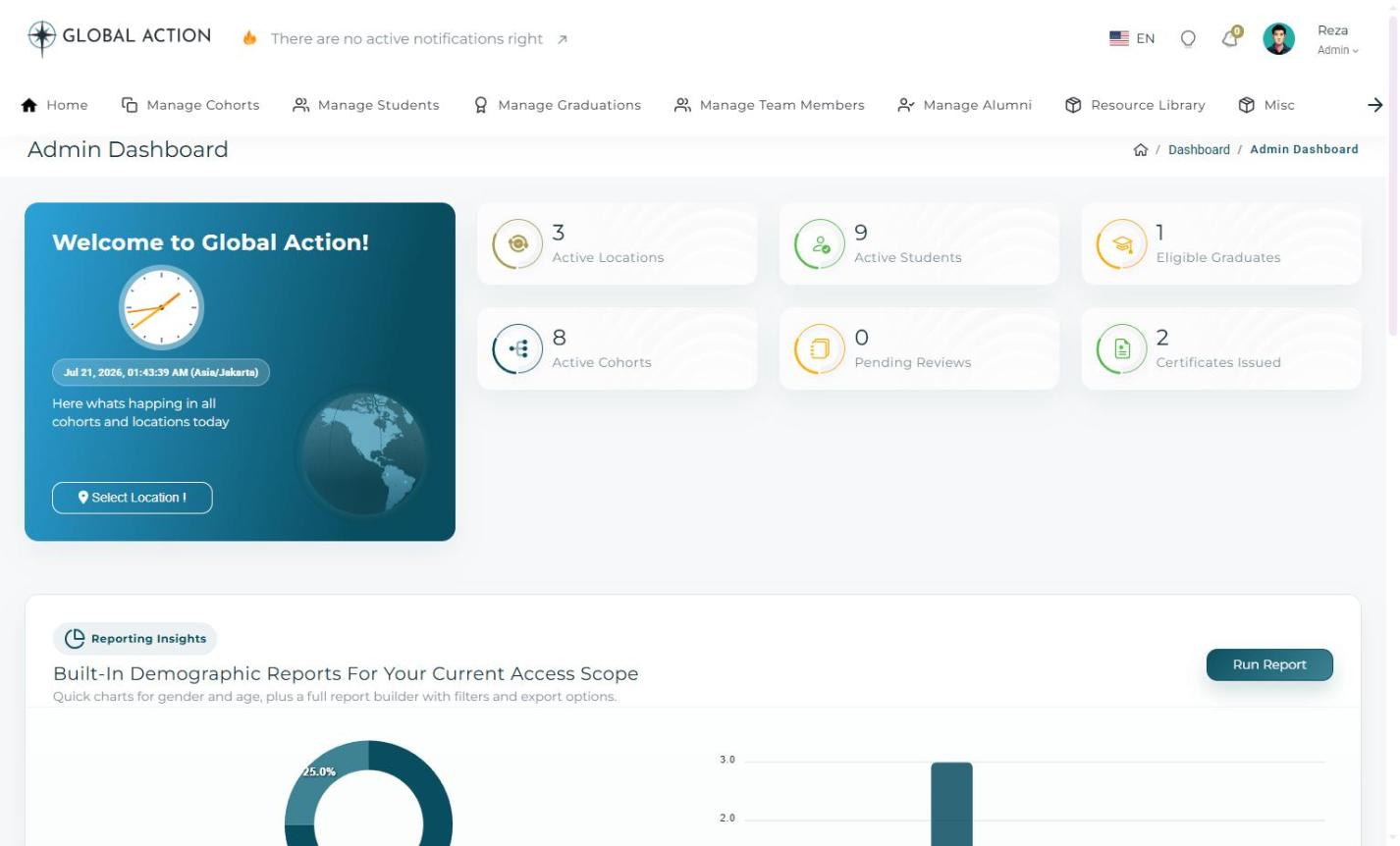 Figure 1. Selecting Manage Cohorts from the Admin Dashboard.
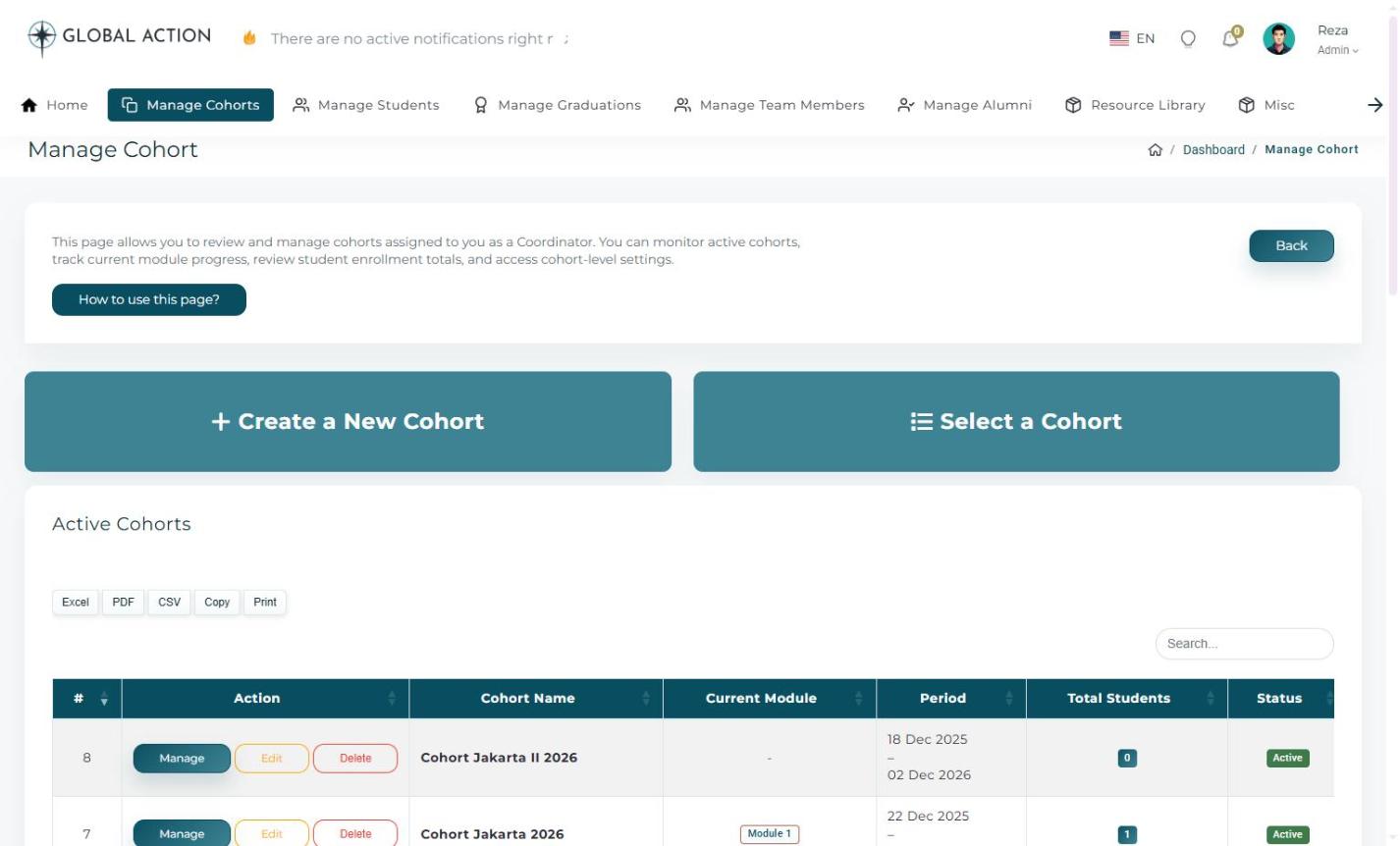 Figure 2. The Manage Cohort page, listing every existing cohort.
2 Program Setup
Choose the training program this cohort will follow. The program determines which modules and materials will later appear for students.
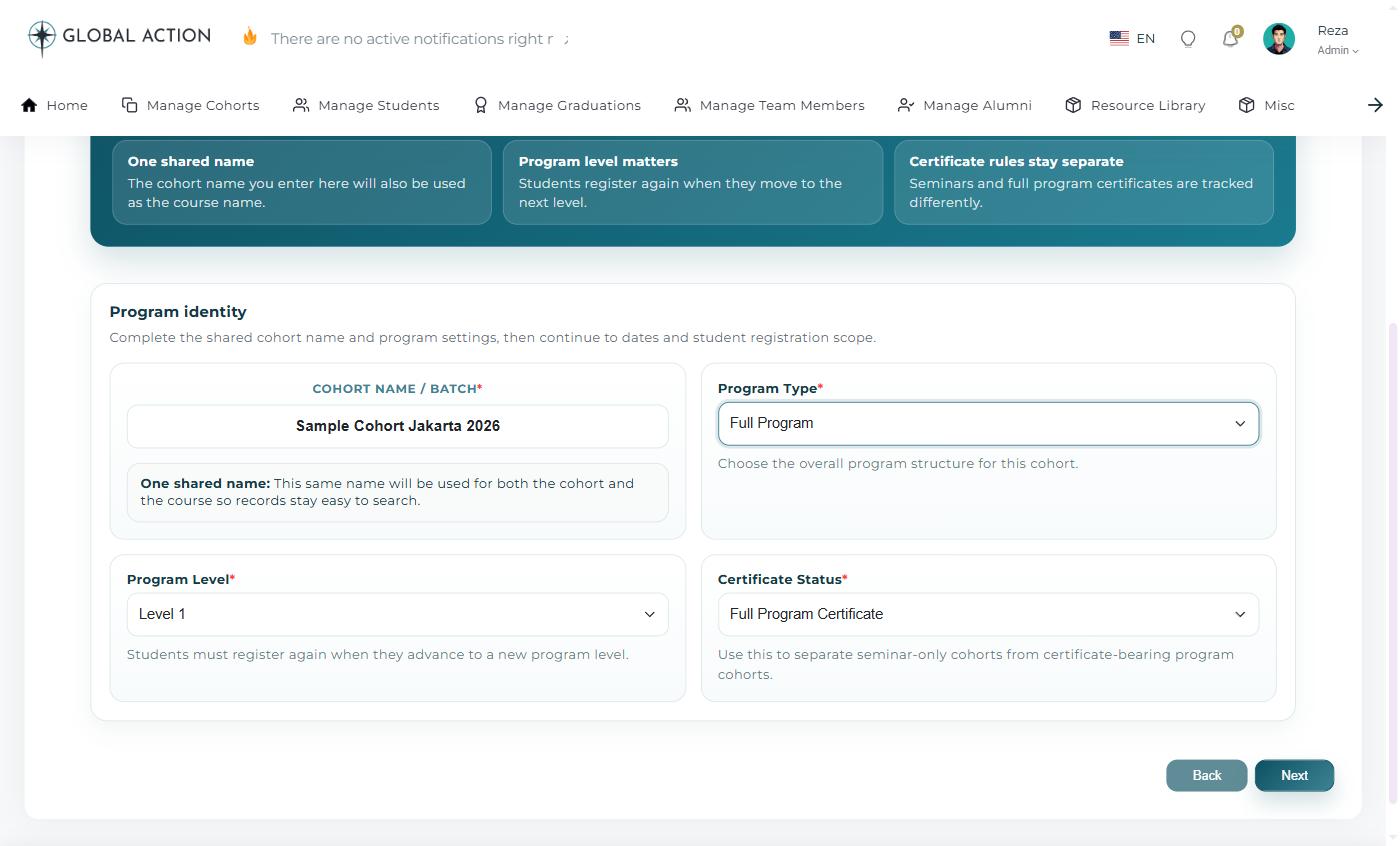 Figure 3. Selecting the training program for the new cohort.
3 Naming & Dates
Give the cohort a clear, memorable name and set its start and end dates. A descriptive name, for example one that includes the location and year, makes it much easier to find later.
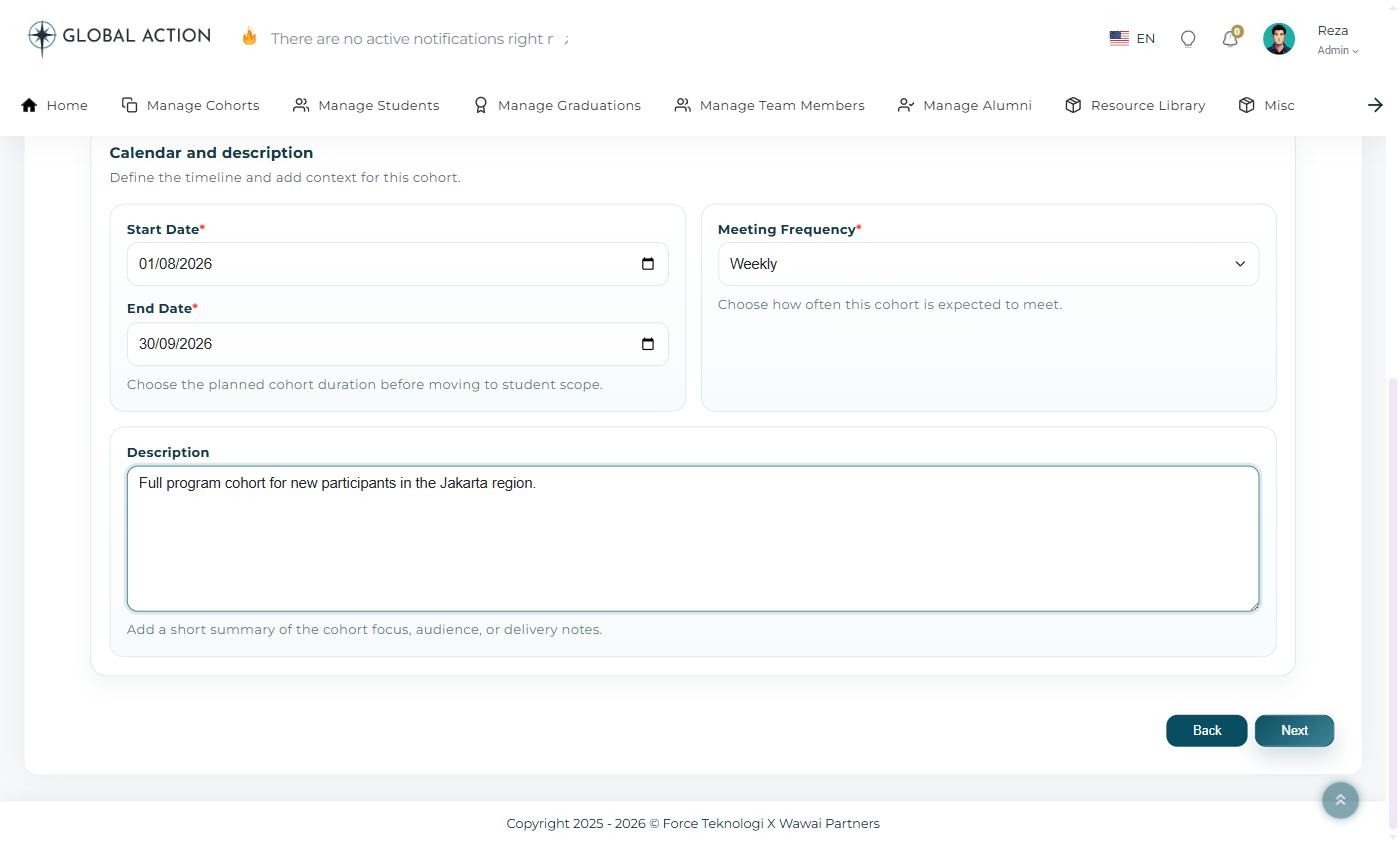 Figure 4. Naming the cohort and setting its schedule.
4 Student Scope
Define the location, and church if relevant, that this cohort belongs to. This scope controls who is eligible to be registered as a student.
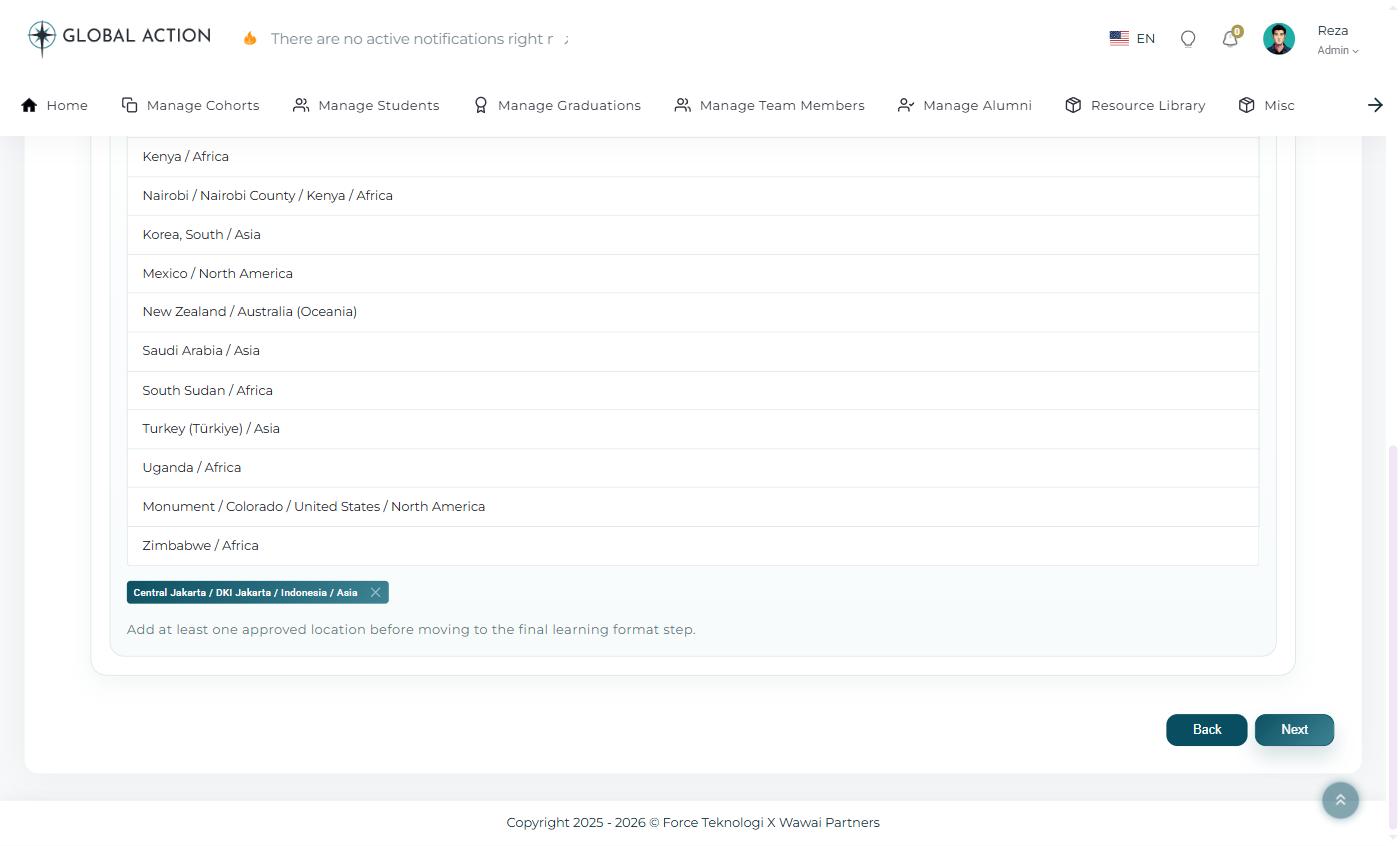 Figure 5. Setting the student scope for the cohort.
5 Learning Format
Pick the learning format that best matches how the cohort will actually meet: in person, online, or a hybrid of both.
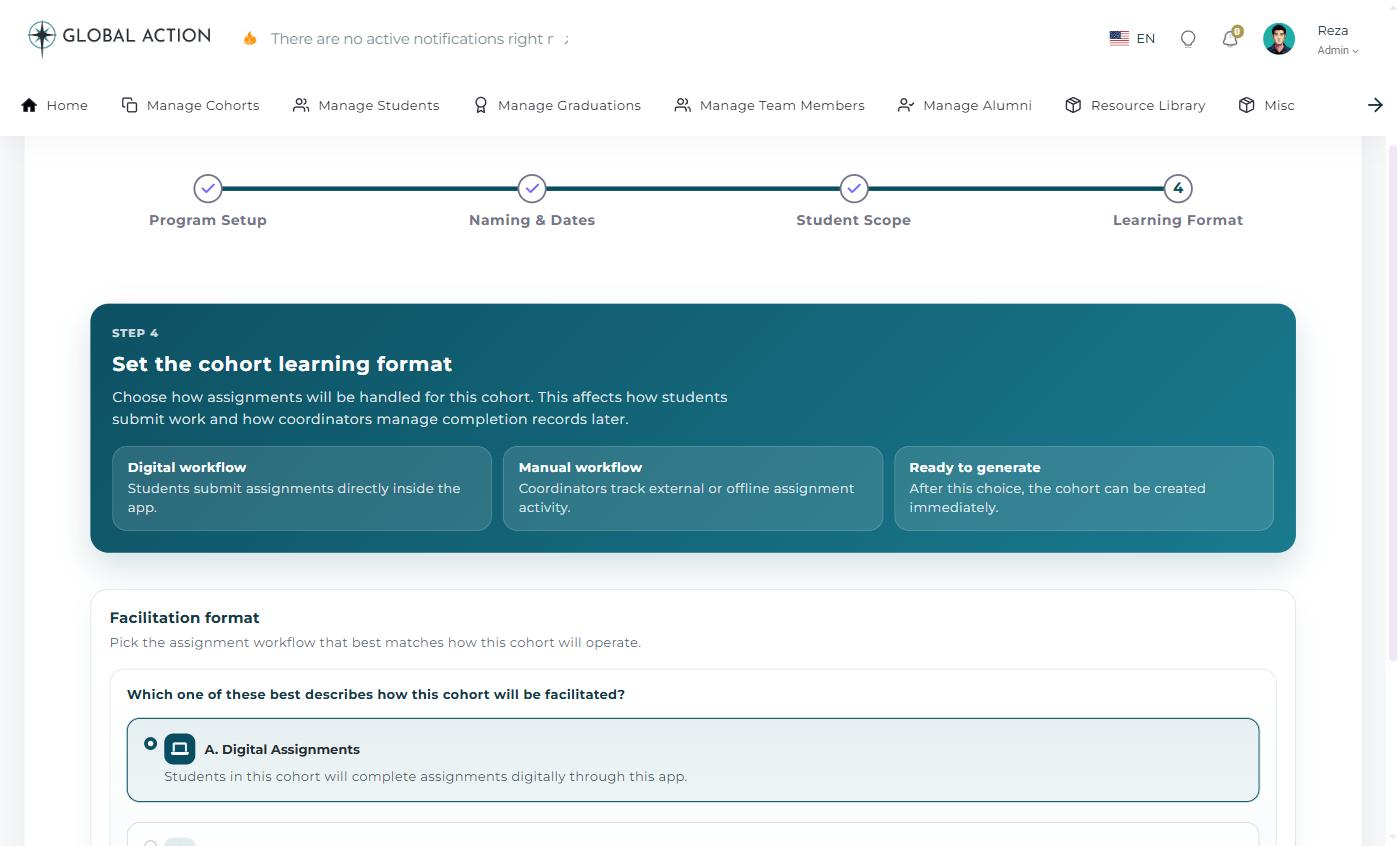 Figure 6. Choosing the cohort's learning format.
6 Generate the Cohort
Review the summary and click Generate. The new cohort will now appear in the Manage Cohort list, ready for students, teachers, and modules to be added.
Editing, Deleting & Managing a Cohort
Find an existing cohort, update its details, or open its full management page.
What You Will Learn
- How to find a cohort in the list
- How to edit or delete a cohort
- What you will find on a cohort's detail page
- Where to check a student's transfer history
1 Find the Cohort
Open Manage Cohorts from the top navigation. Use the search box to quickly filter the list by name, or scroll through it directly. The list can also be exported to Excel, PDF, or CSV, or sent to a printer, using the buttons above the table.
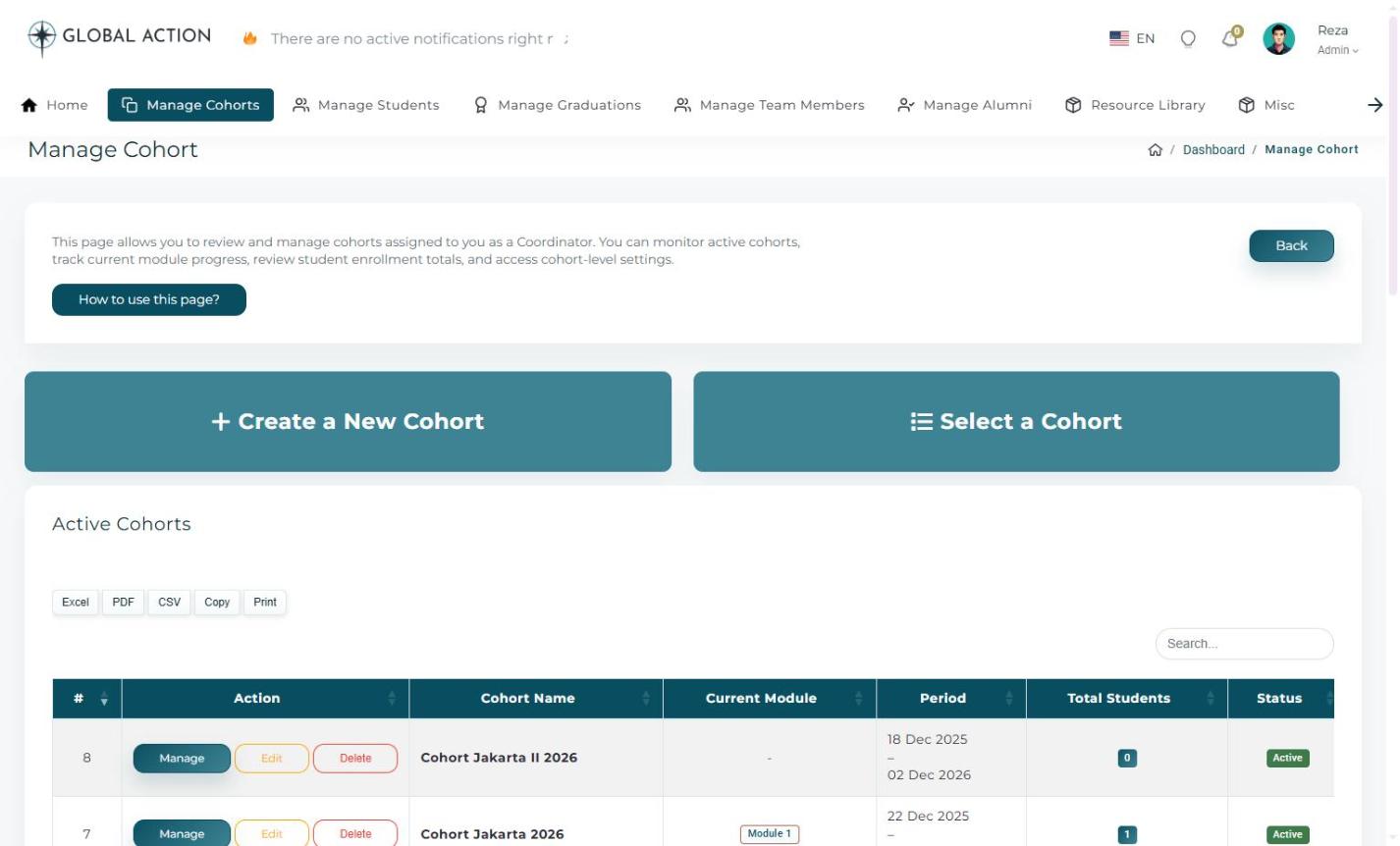 Figure 1. The Manage Cohort listing, with Create, Select, Edit, Delete, and Manage actions for each row.
2 Edit or Delete a Cohort
Click Edit next to a cohort to update its name, dates, or scope. Click Delete to remove a cohort entirely.
3 Open the Cohort Detail Page
Click Manage to open the full detail page for a cohort. From here you can:
- Assign or review Roles for the cohort
- Jump directly to Register a Student, Student Profiles, Submissions, Attendance, Graduation Management, or Certificates
- Review the Modules table and Students Roster
- Check Assignments, Class Facility & Logistics, and the Student Transfer History
- Run a report scoped to just this cohort, using the Run Report button near the top of the page
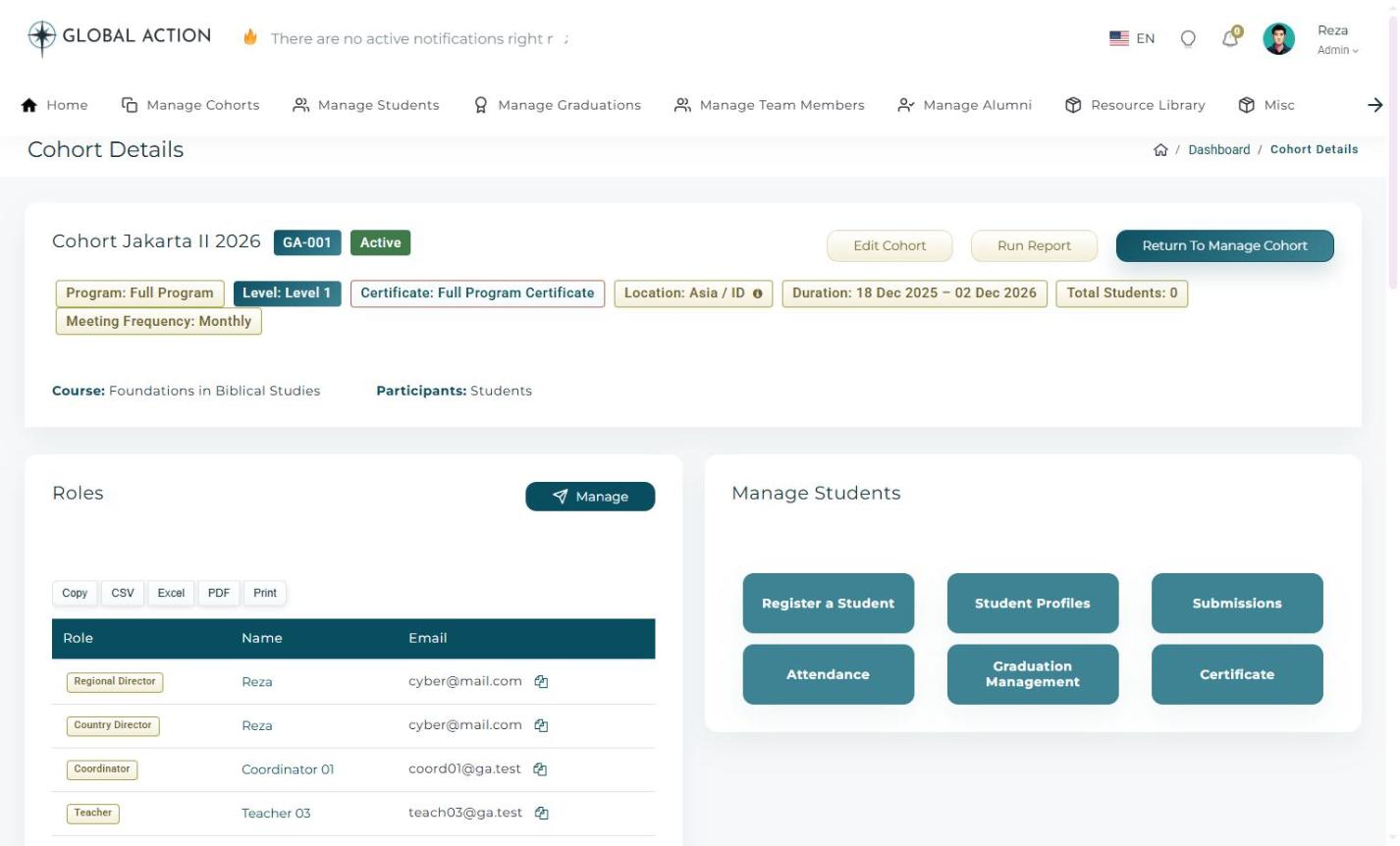 Figure 2. The Cohort Details page, which acts as a hub for everything related to that cohort.
4 Review Student Transfer History
If a student ever moves from one cohort to another, that move is recorded automatically. Scroll to the bottom of the Cohort Details page and click View All under Student Transfer History to see the full log, including who was transferred, the reason given, and who made the change.
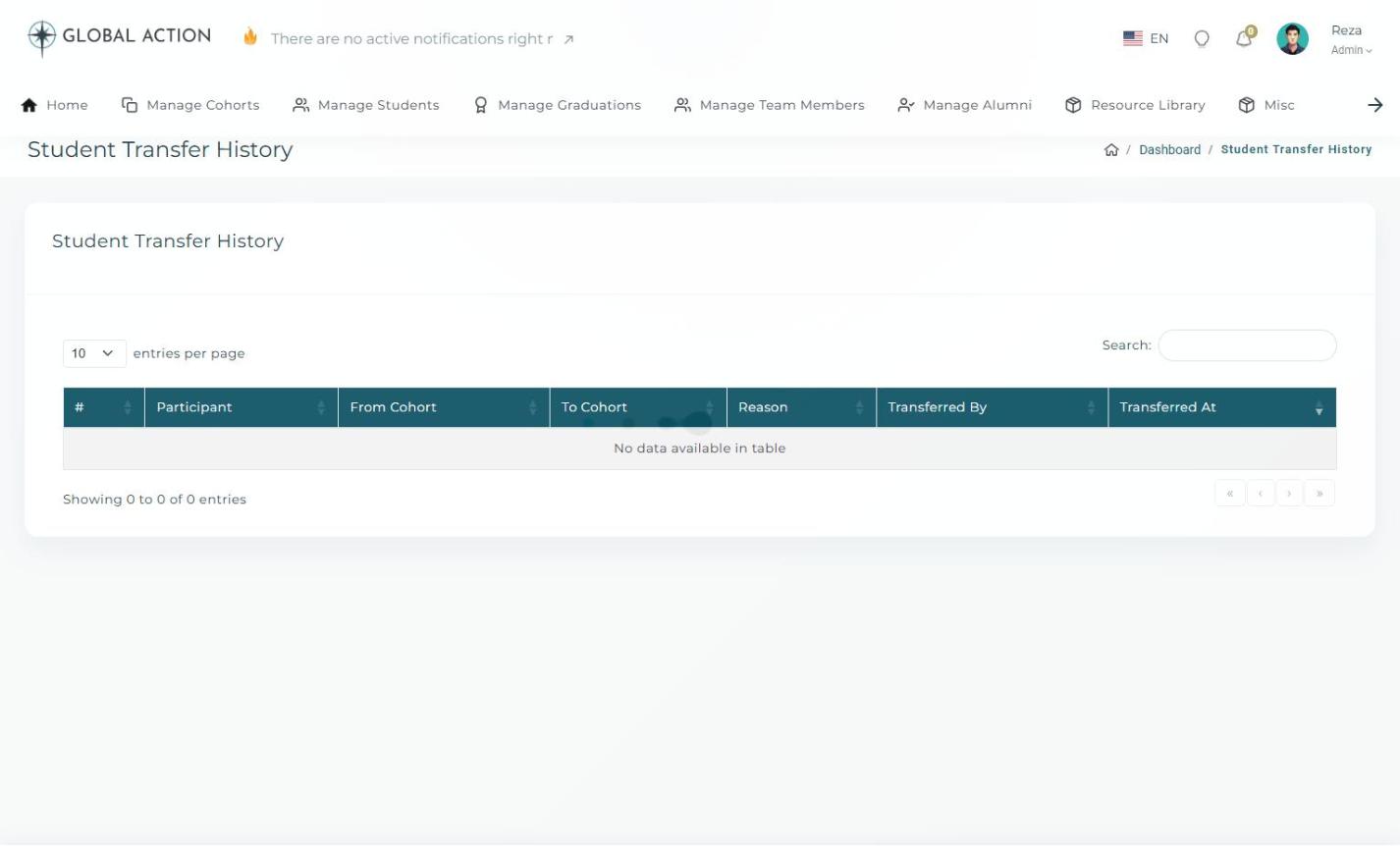 Figure 3. The Student Transfer History table for a cohort.
Managing Class Facility & Logistics
Record the physical details of where a cohort actually meets.
What You Will Learn
- How to open the Facility & Logistics page for a cohort
- What information you can record
- How to save your changes
1 Open Facility & Logistics
From a cohort's detail page, scroll down to Class Facility & Logistics and click Manage.
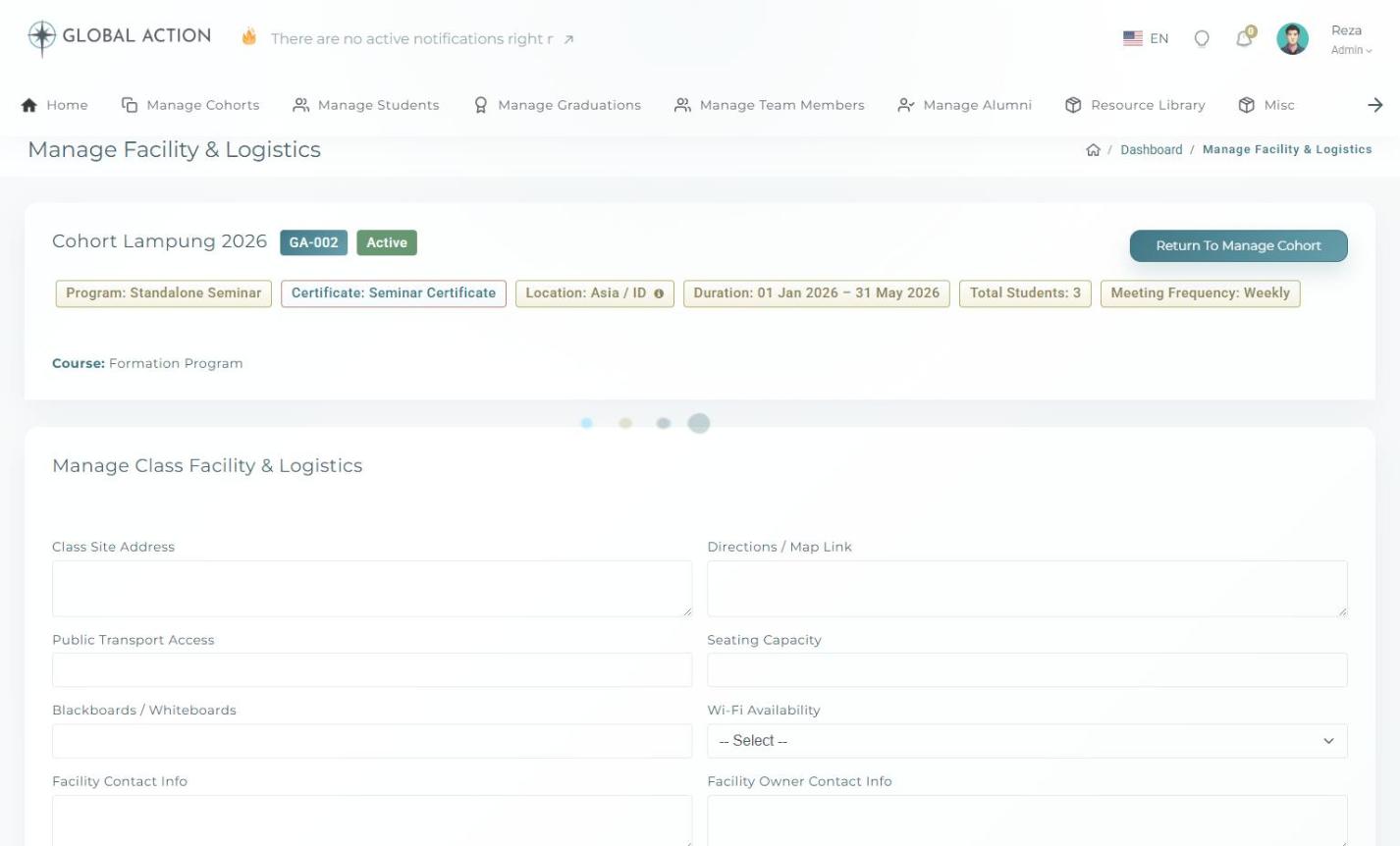 Figure 1. The Manage Class Facility & Logistics form.
2 Fill In the Facility Details
You can record the class site address, a directions or map link, public transport access, seating capacity, and whether the room has blackboards or whiteboards. There are also fields for facility contact info, the facility owner's contact info, terms and conditions, a meals plan, whether a security assessment has been done, Wi-Fi availability, and whether restrooms are available.
3 Save Your Changes
Once you are done, click Save Facility Data. You can come back and update these details at any time as the cohort's meeting arrangements change.
Setting Up Attendance Sessions
Create an official attendance schedule and record who showed up.
What You Will Learn
- How to open Attendance Settings for a cohort
- How to add an attendance session
- How to enter attendance for a session
1 Open Attendance Settings
From a cohort's detail page, choose Attendance under the Manage Students shortcuts.
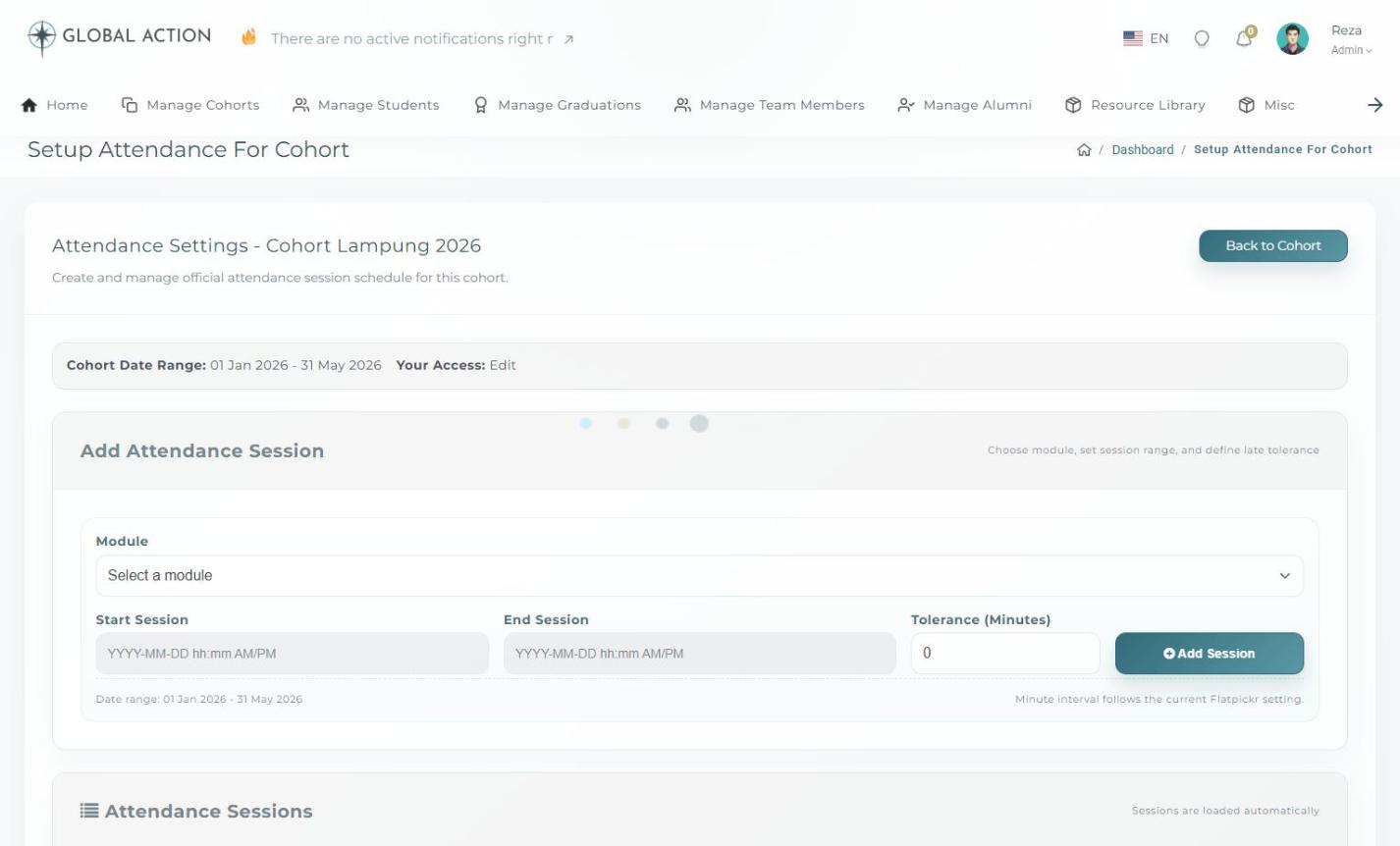 Figure 1. Attendance Settings for a cohort, with the Add Attendance Session form and session list.
2 Add an Attendance Session
Choose the module the session belongs to, then set the Start Session and End Session times and a late Tolerance in minutes. Click Add Session once you are ready. The session will then appear in the Attendance Sessions list below, where it can be reviewed later.
3 Enter Attendance
In the Attendance Entry section, select the module and the specific session you want to record. The list of enrolled students will load automatically, letting you mark who attended that session.
Managing Assignments, Questions & Submissions
Build quiz and essay questions for each module, and review what students have submitted.
What You Will Learn
- How to open Manage Cohort Assignments
- How to add or import questions for a module
- How to review student submissions
1 Open Manage Cohort Assignments
From a cohort's detail page, choose Submissions under the Manage Students shortcuts, or click Manage next to the Assignments section further down the page. Both lead to the same module list, where each module has a Manage Submissions and a Manage Assignments button.
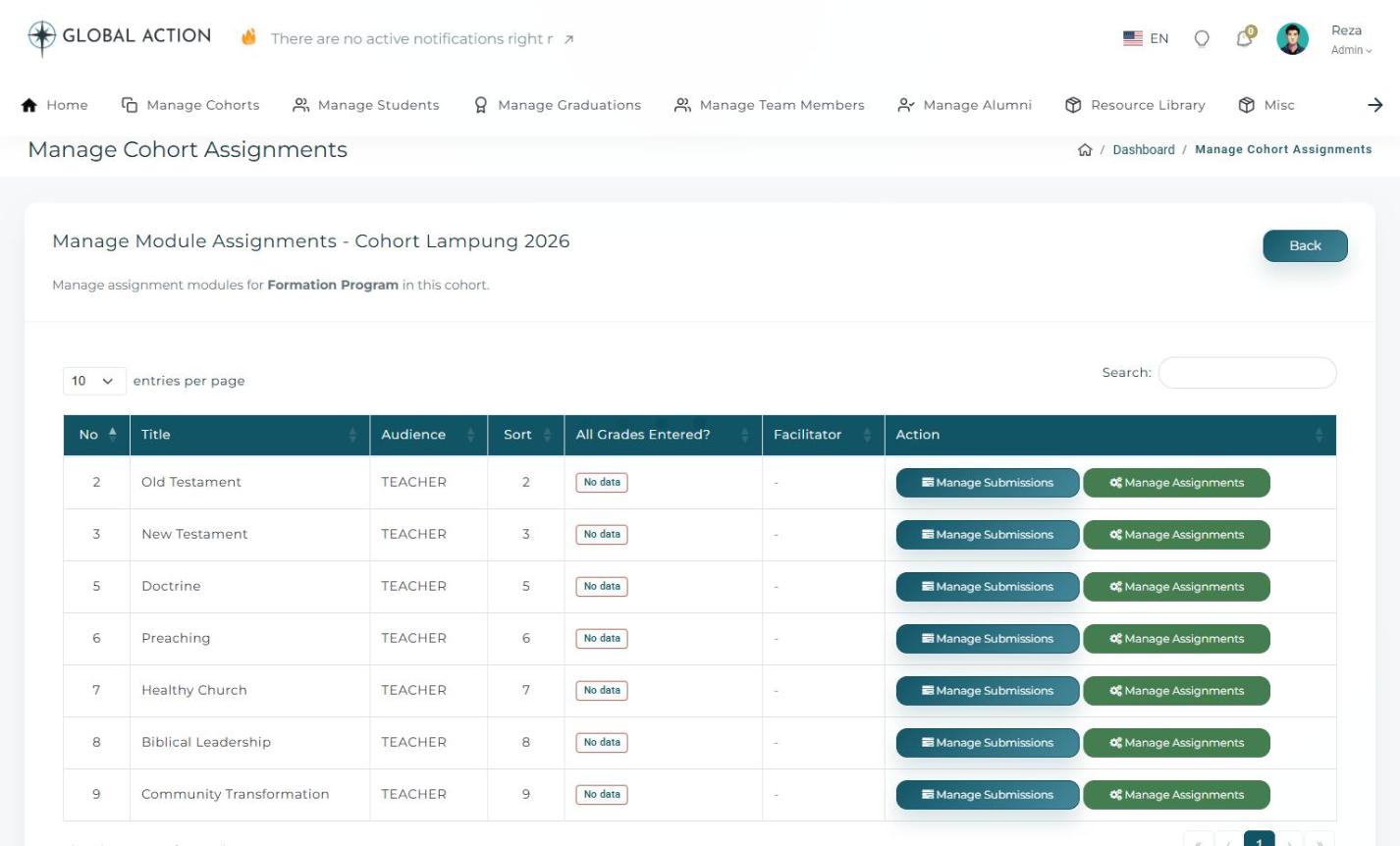 Figure 1. The Manage Cohort Assignments page, listing every module with its own action buttons.
2 Add or Import Questions
Click Manage Assignments for a module to open its question list. You can add questions one at a time, choosing between Multiple Choice and Essay types, or import a batch of questions from a spreadsheet using the provided example file as a template. Due dates can be edited individually or all at once using Edit All Due Dates.
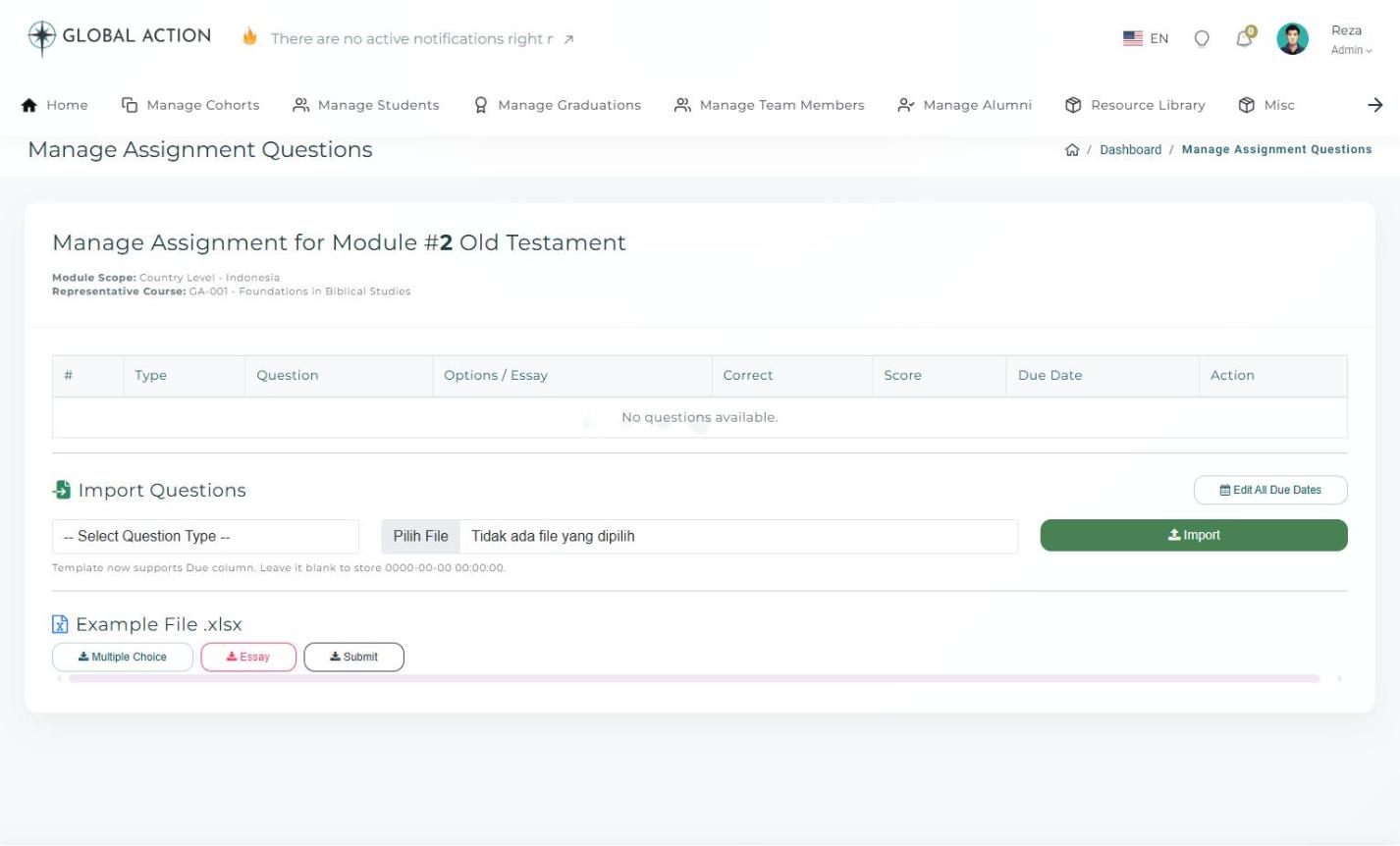 Figure 2. Managing questions for a single module, with options to add or import Multiple Choice and Essay questions.
3 Review Submissions
Click Manage Submissions for a module to see how students have answered, and to enter grades where needed. The "All Grades Entered?" column on the module list gives you a quick way to see which modules still need attention.
Managing Certificates for a Cohort
Choose a certificate template and issue certificate files for one cohort.
What You Will Learn
- How to open Cohort Certificates
- How to choose a certificate template
- How to view an issued certificate
1 Open Cohort Certificates
From a cohort's detail page, choose Certificate under the Manage Students shortcuts.
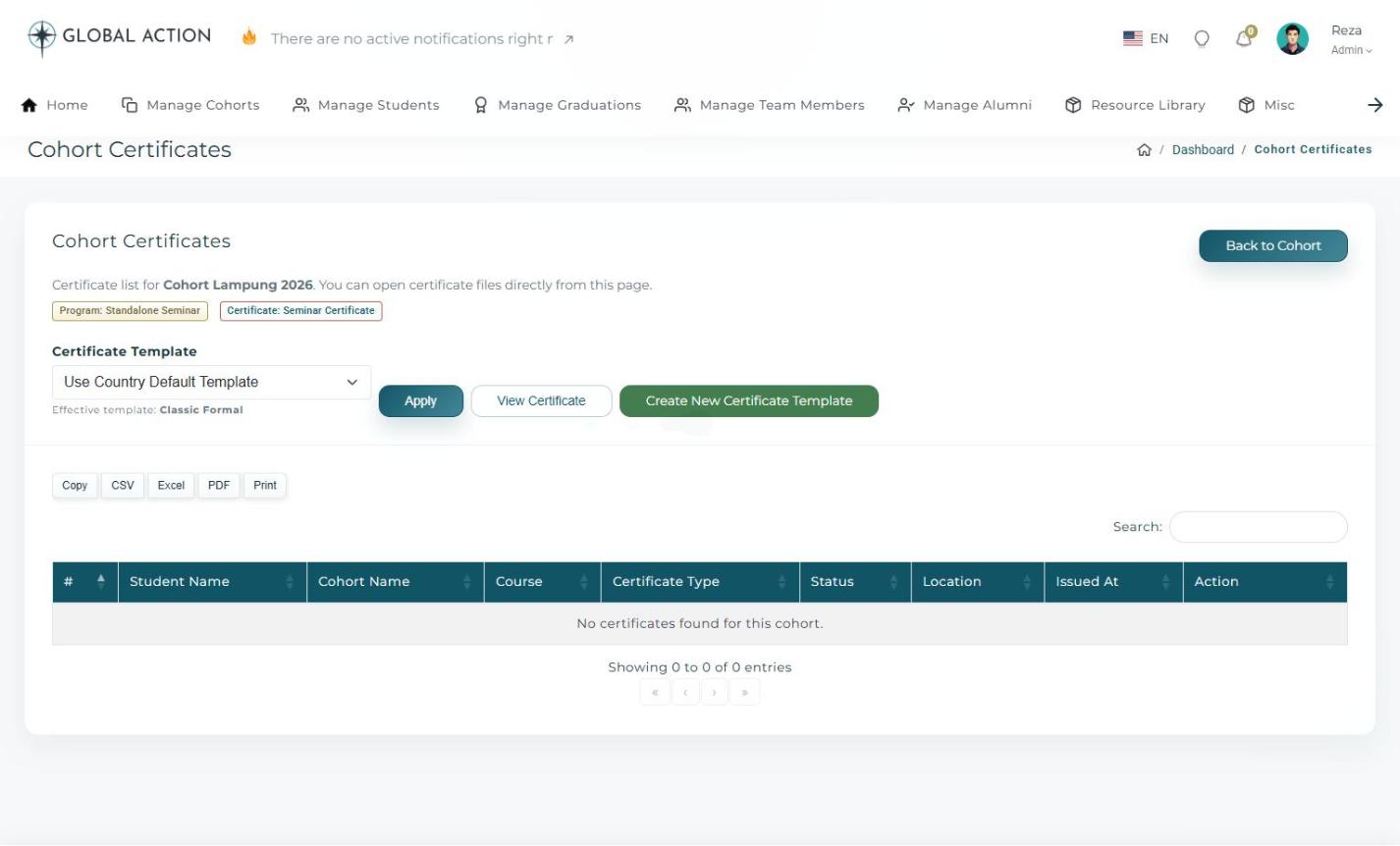 Figure 1. The Cohort Certificates page, with a template selector and a list of issued certificates.
2 Choose a Certificate Template
Use the Certificate Template dropdown to pick a specific design, or leave it set to Use Country Default Template so it follows whatever has been configured for that country. Click Apply to confirm your choice.
3 View or Create Certificates
Click View Certificate to preview how it will look, or Create New Certificate Template to design a new one from this page. Once certificates have been generated for students in this cohort, usually from the Graduation Management page, they will be listed in the table below with their status and issue date.
Registering a New Student
Add a student to a cohort and set up their account.
What You Will Learn
- How to open the registration form
- What information is required versus optional
- How the default student password is generated
1 Open the Registration Form
From a cohort's detail page, choose Register a Student, or go to Manage Students and click Add New Student.
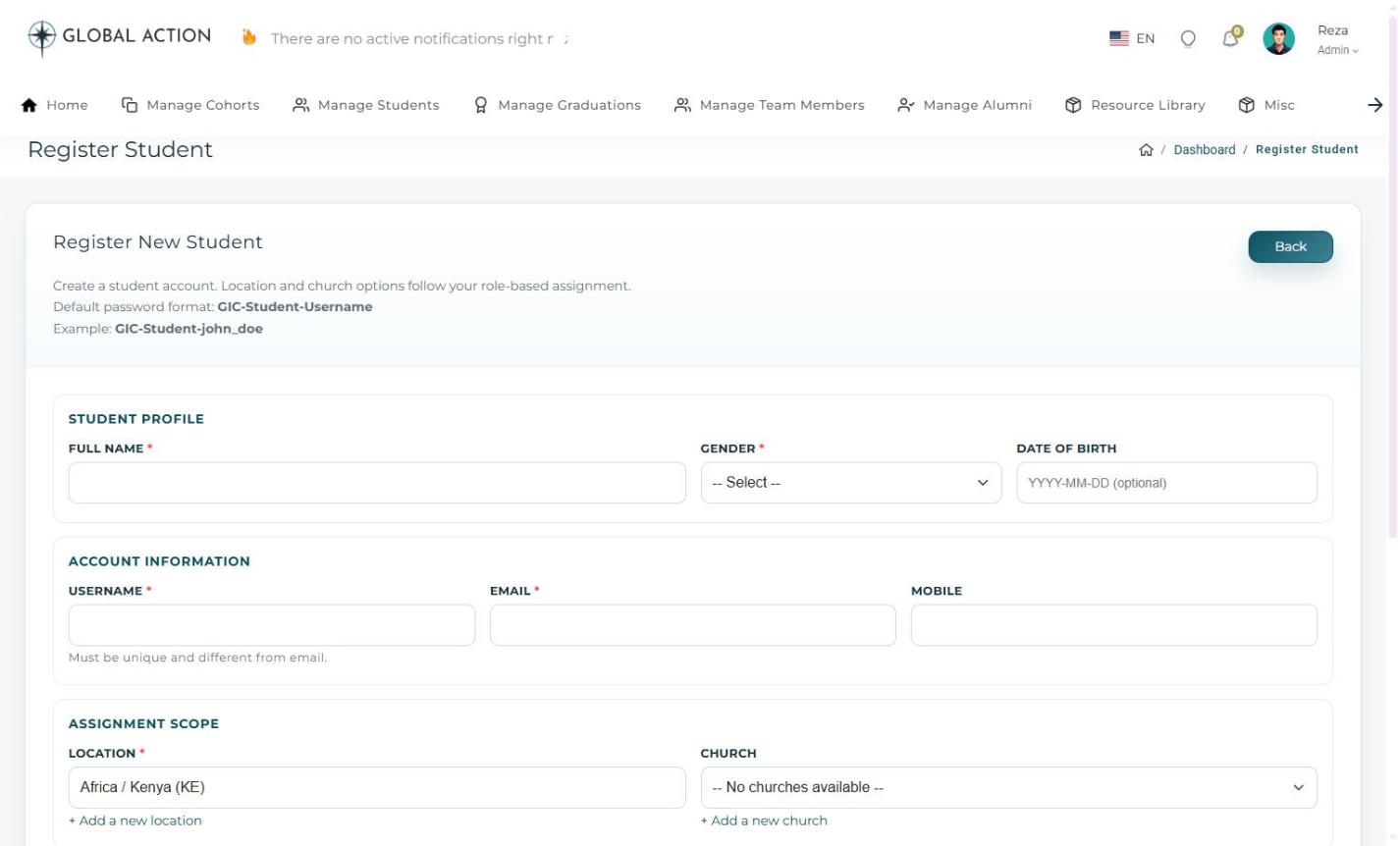 Figure 1. The student registration form, divided into Student Profile, Account Information, Assignment Scope, and Profile Details.
2 Fill In the Required Sections
The form is organized into a few clear sections:
- Student Profile - the student's basic personal details.
- Account Information - a username is required; the default password follows the format GIC-Student-Username, which the student can change later.
- Assignment Scope - Location is required, and Church is optional if it applies.
- Profile Details - headshot photo, education background, and a short bio are all optional but help personalize the student's profile.
3 Save the Student
Once the required fields are filled in, submit the form. The student will now appear in the cohort's roster and in the Manage Students list, ready to begin their coursework.
Viewing Student Profiles & Progress
Look up a student and review their academic progress at a glance.
What You Will Learn
- How to find a student in the list
- What information appears on a student profile
- How to read the course completion indicators
1 Open Manage Students
Select Manage Students from the top navigation to see the "My Students" list. Use the search and filter options to narrow down the table, then click View next to the student you are looking for.
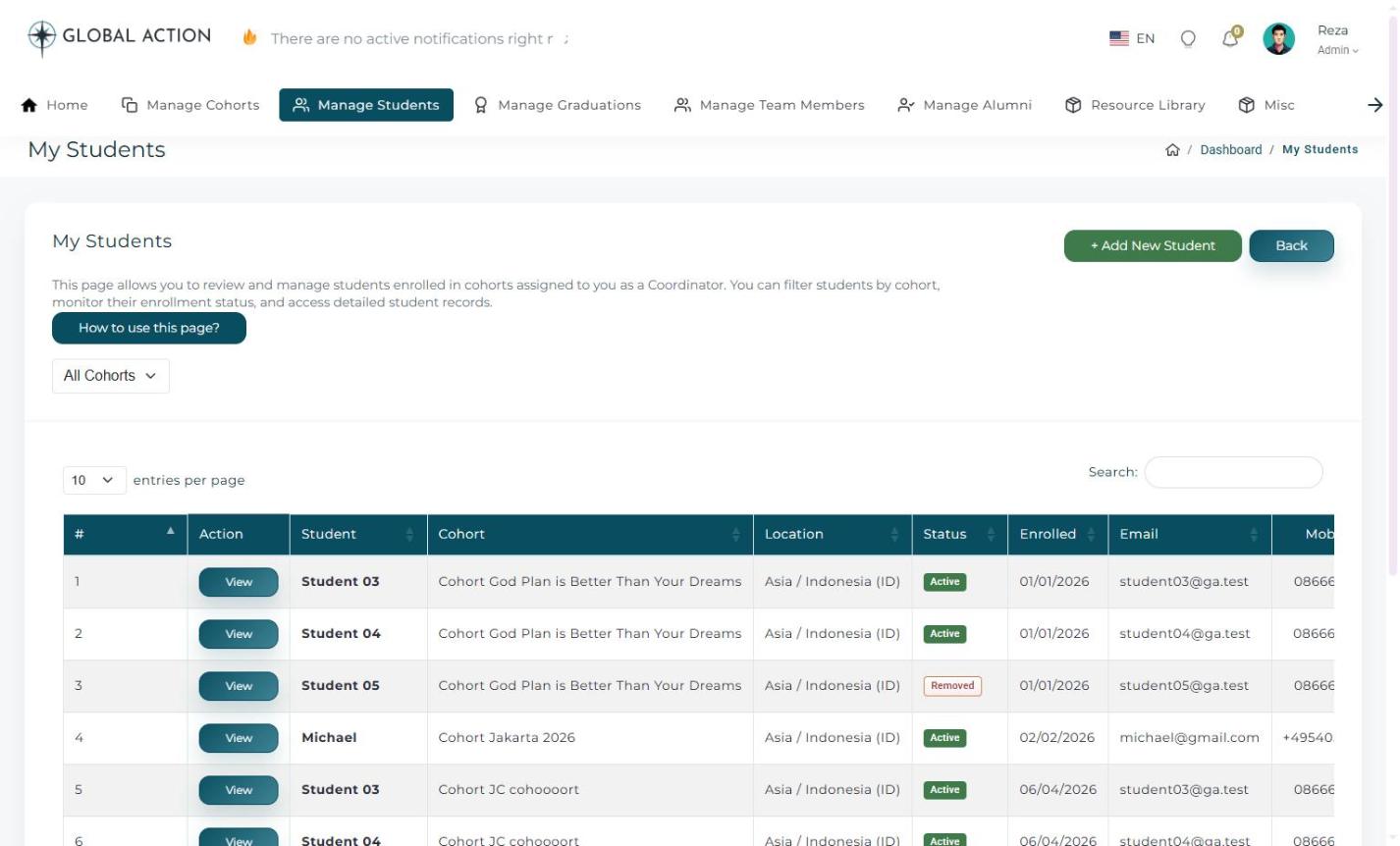 Figure 1. The Manage Students table, with search, filters, and a View action for each student.
2 Review the Student Profile
The profile page brings together several useful sections:
- Contact information, along with their assigned location and church
- Badges earned and certificates received so far
- A course completion ring showing overall progress at a glance
- A module completion checklist listing each module and its status
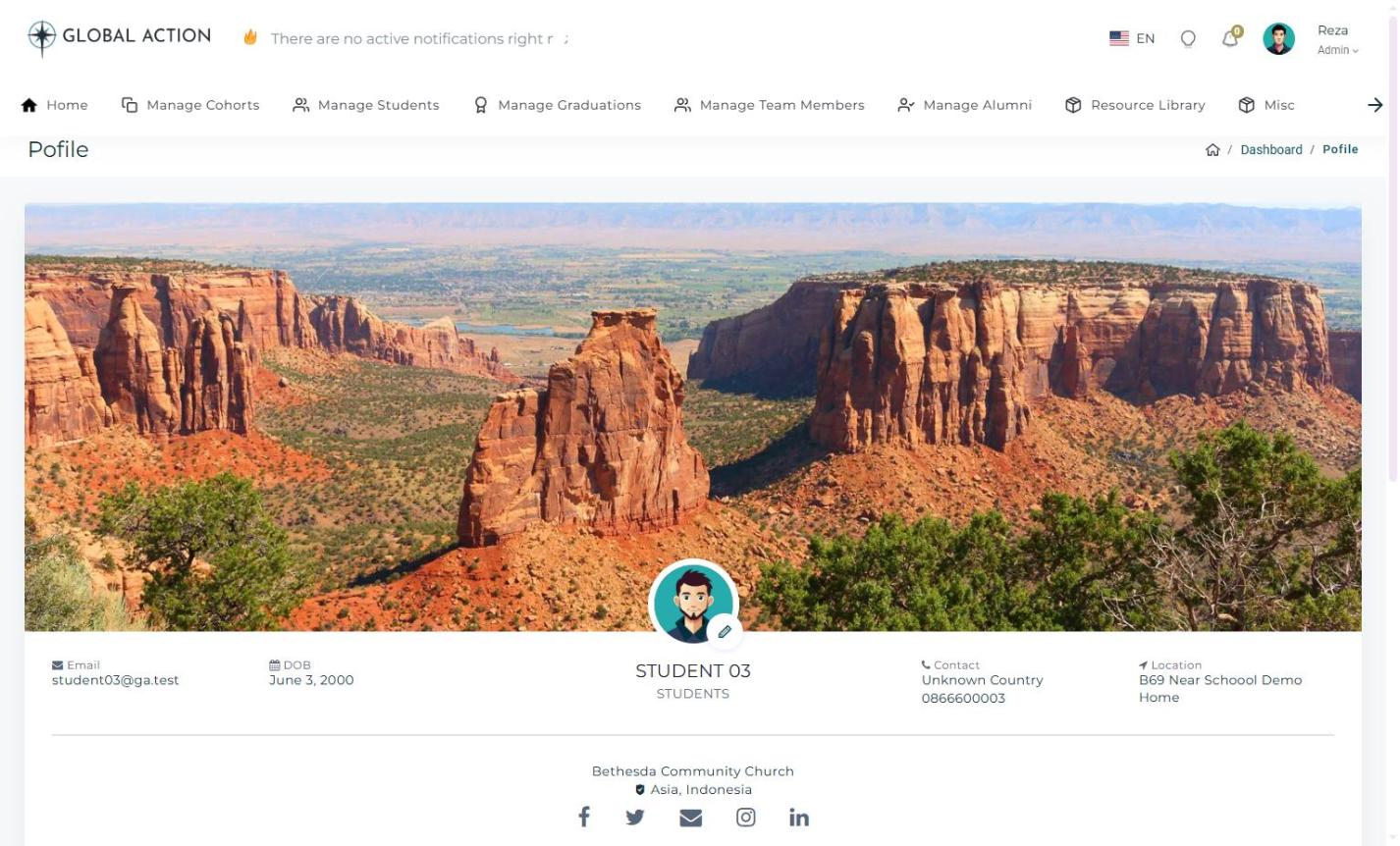 Figure 2. A student's profile page, including badges, certificates, and module completion.
Graduating Students & Module Approval
Approve completed modules and issue certificates once a cohort finishes its program.
What You Will Learn
- How to open Manage Graduations
- How to review the Student Module Approval Overview
- How to generate or revoke a certificate
1 Open Manage Graduations
Select Manage Graduations from the top navigation. You will see the Manage Graduations & Booklet listing, along with a Student Module Approval Overview table further down the page.
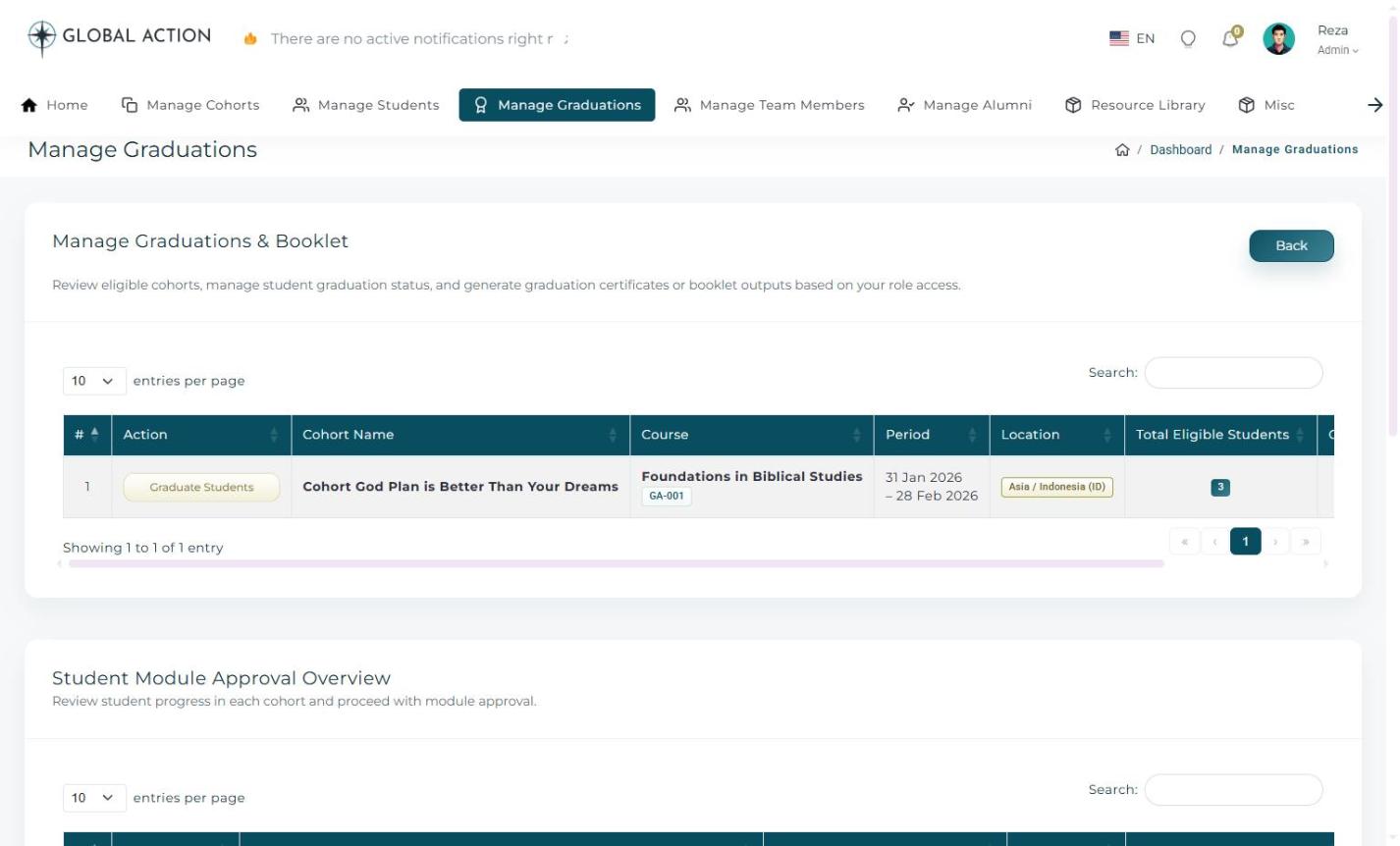 Figure 1. The Manage Graduations & Booklet listing, with a Graduate Students action for each cohort.
2 Open Graduation Management for a Cohort
Click Graduate Students next to a cohort to open its Graduation Management page. Here you can review each student's Certificate Number, Booklet Number, Issued At date, and Status.
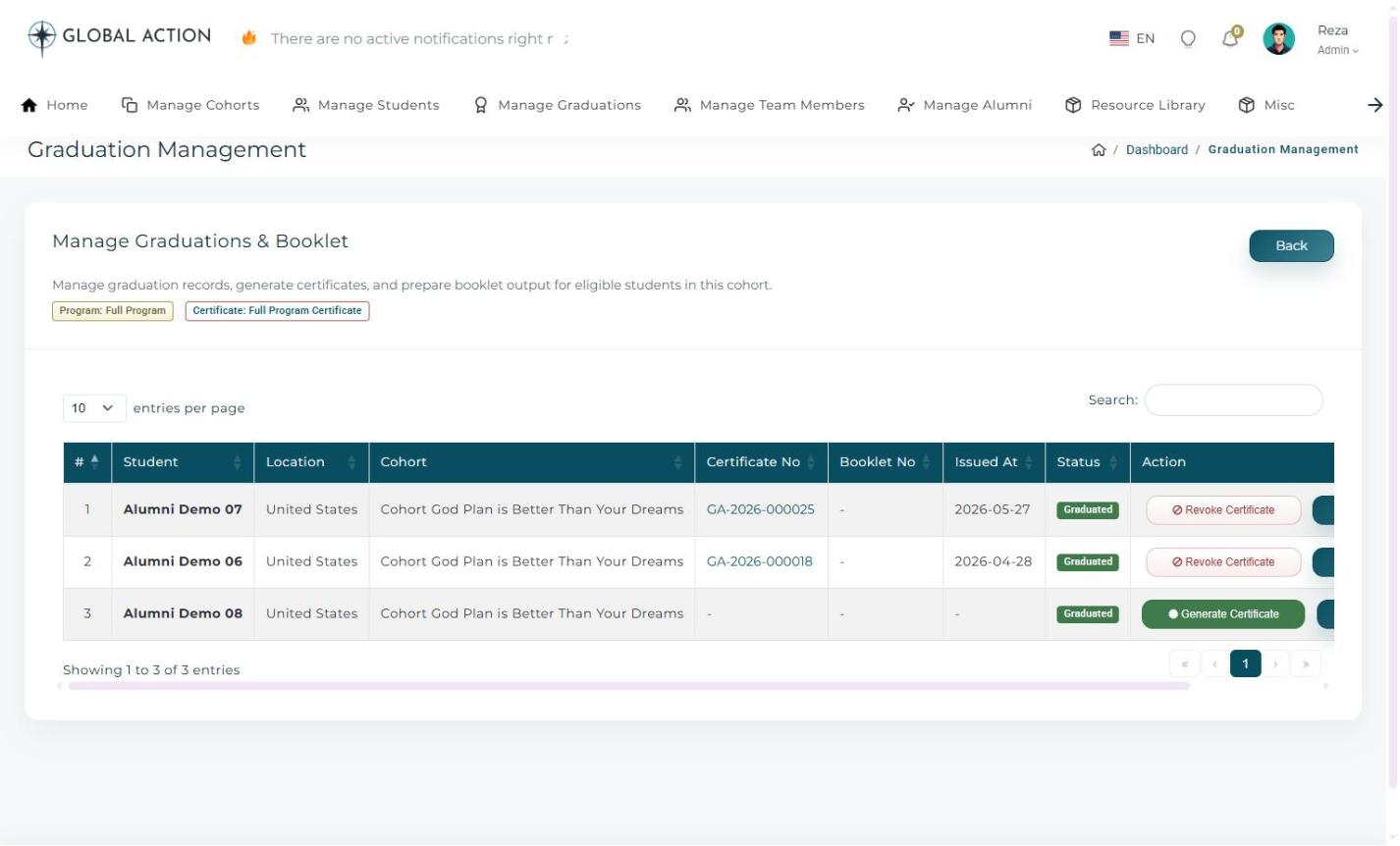 Figure 2. Graduation Management for a single cohort, showing certificate status per student.
3 Generate or Revoke a Certificate
Once a student has completed the required modules, click Generate Certificate to issue it. If a mistake needs to be corrected, Revoke Certificate is available as well.
Assigning Coordinators, Teachers & Mentors
Build the team responsible for running a cohort.
What You Will Learn
- How to open Manage Team Members
- How to open Cohort Role Management for a specific cohort
- How to assign and save roles
1 Open Manage Team Members
Select Manage Team Members from the top navigation. You will see a card for each cohort, showing who is currently assigned as Coordinator, Teacher, and Mentor.
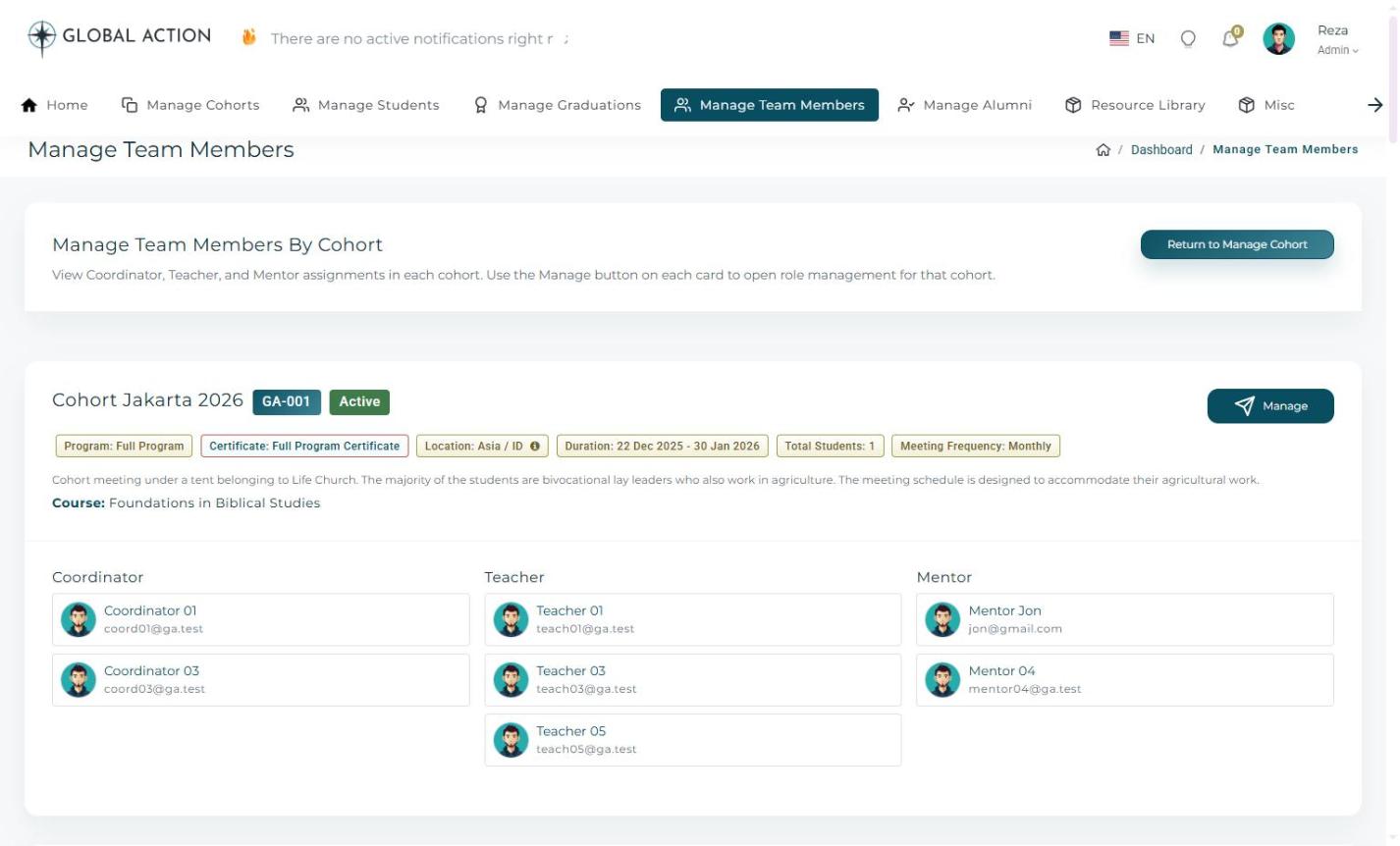 Figure 1. Team Members grouped by cohort, each with a Manage button.
2 Manage Roles for a Cohort
Click Manage on a cohort's card to open Cohort Role Management. Use the Select Cohort dropdown to switch cohorts if needed, then check the box next to each person you want to assign to a role. People already assigned are marked with an "Assigned" tag.
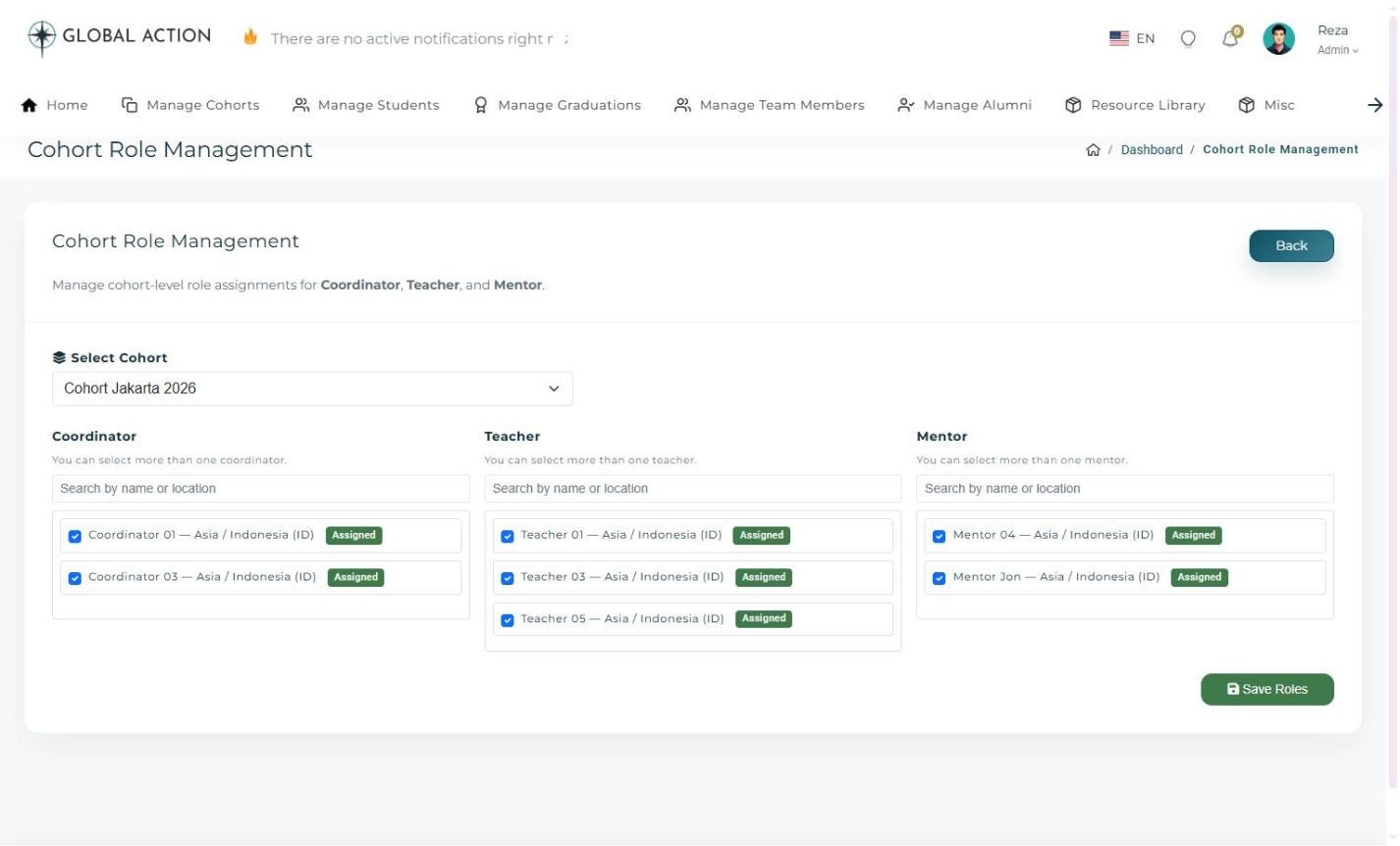 Figure 2. Cohort Role Management, with checkbox lists for each role.
3 Save Your Changes
After making your selections, click Save Roles. The team card for that cohort will now reflect the updated assignments.
Viewing & Managing Alumni
Keep track of students who have completed their program.
What You Will Learn
- How to open Manage Alumni
- How to filter by cohort
- How to export or view an alumnus's record
1 Open Manage Alumni
Select Manage Alumni from the top navigation. By default, the list shows alumni across All Cohorts, but you can narrow it down using the cohort filter.
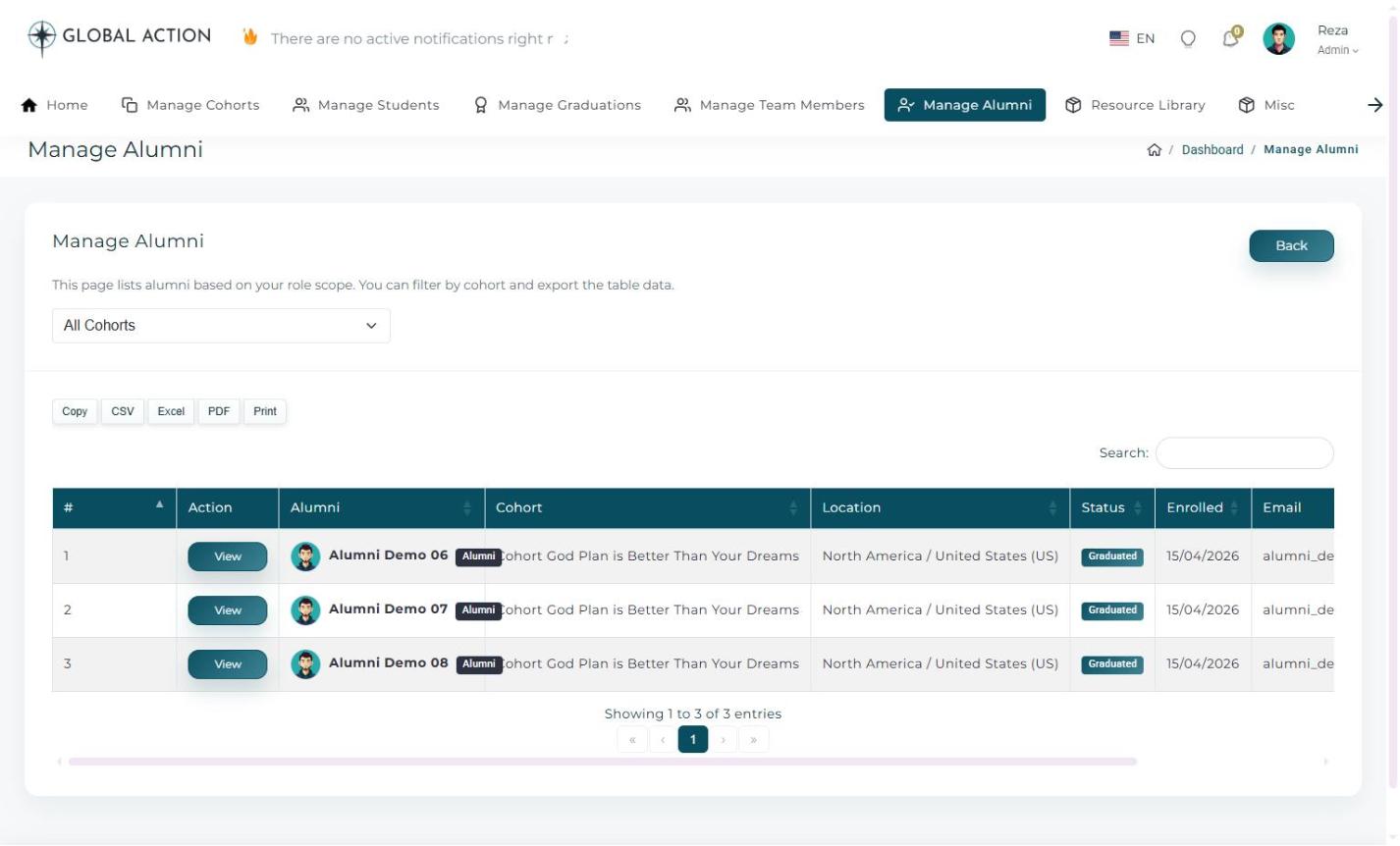 Figure 1. The Manage Alumni list, with a cohort filter, export buttons, and a View action.
2 Export or Review a Record
Use the export buttons above the table to download the alumni list in your preferred format, or click View next to a name to see that person's full record, similar to a student profile.
Managing Files in the Resource Library
Upload, organize, and share files with a cohort, region, or country.
What You Will Learn
- How to choose a library source
- How to add files or folders
- How to share, rename, or delete an item
1 Choose a Library Source
Select Resource Library from the top navigation. At the top of the page, choose whether you want the Cohort Library, Region Library, or Country Library, then use the Select Cohort search if you chose the cohort option.
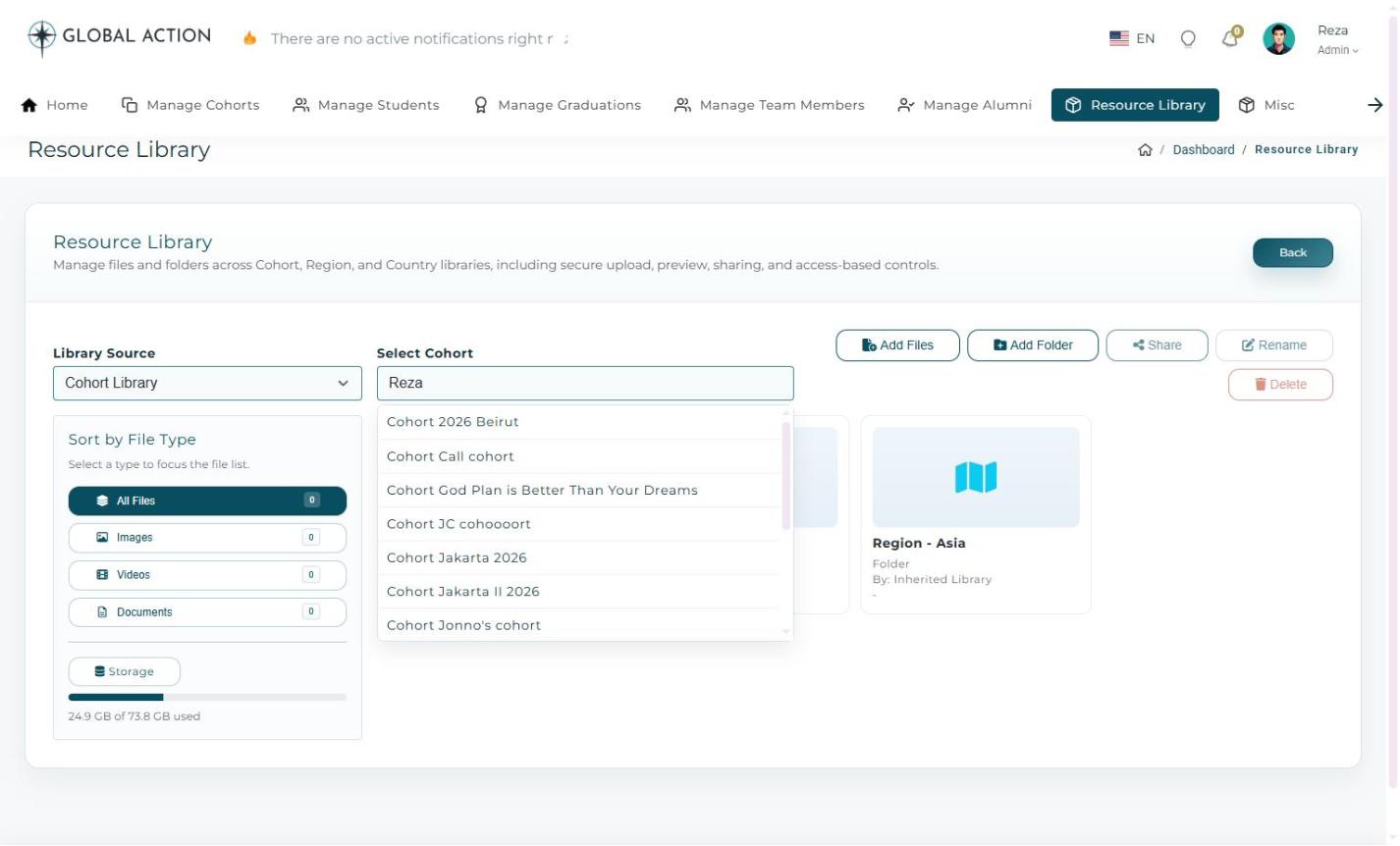 Figure 1. The Resource Library, with a source selector, sort-by-file-type sidebar, and a storage usage bar.
2 Add or Organize Files
Use Add Files to upload new documents, or Add Folder to create a new folder for organizing them. The sidebar lets you sort by file type and keep an eye on how much storage space has been used.
3 Share, Rename, or Delete
Select a file or folder to reveal the Share, Rename, and Delete actions. Share makes an item available to the people who need it, while Rename and Delete help keep the library tidy over time.
Running Student & Cohort Reports
Build a demographic or progress report across your entire access scope.
What You Will Learn
- How to open Run Reports
- How to filter and run a report
- How to read the results and export the detailed rows
1 Open Run Reports
Click Run Report on the Reporting Insights card on your Admin Dashboard. You can also reach a report scoped to one cohort by clicking Run Report from that cohort's detail page.
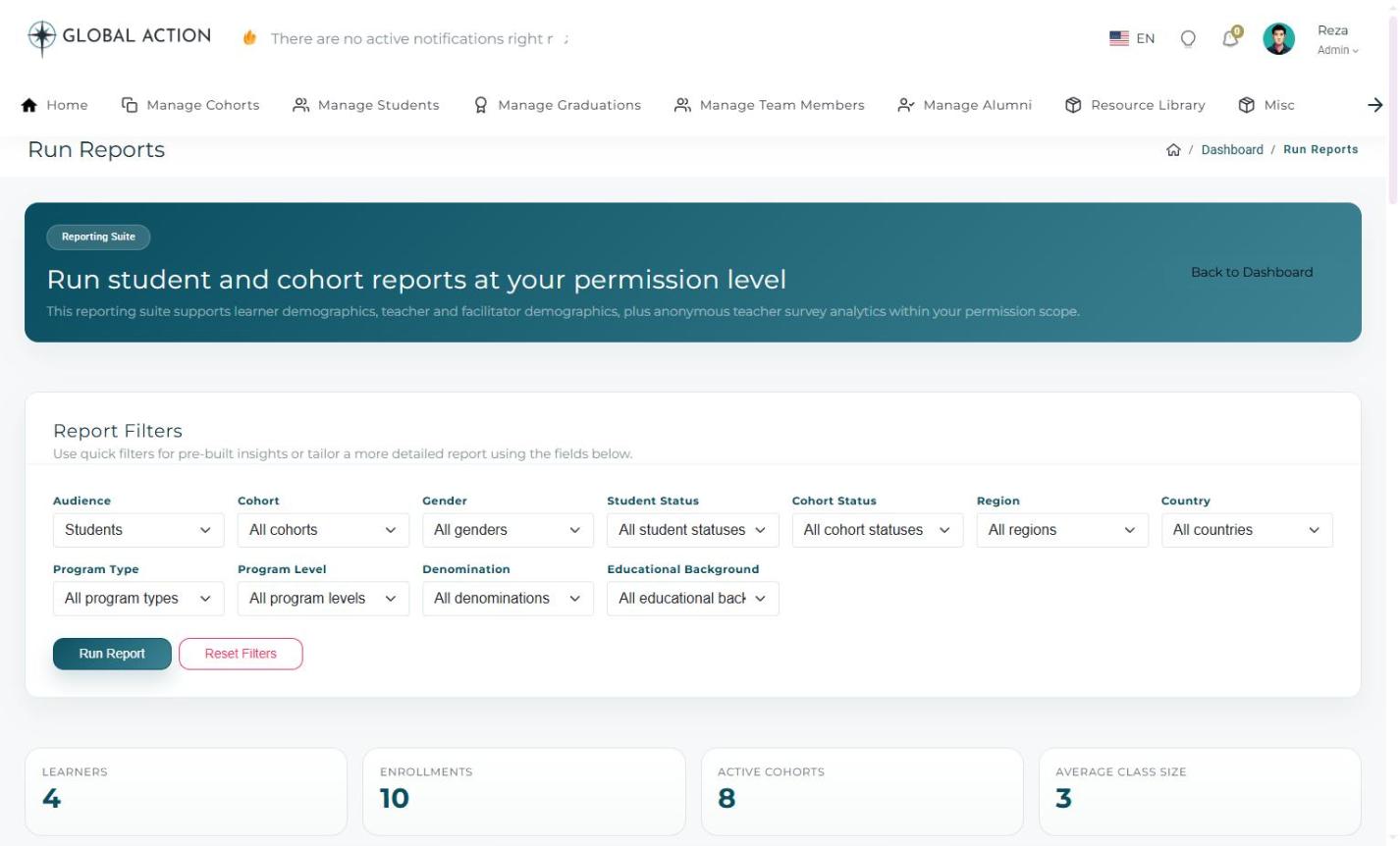 Figure 1. The Run Reports page, with filters and summary cards for Learners, Enrollments, Active Cohorts, and Average Class Size.
2 Filter and Run the Report
Narrow the report using any combination of Audience, Cohort, Gender, Student Status, Cohort Status, Region, Country, Program Type, Program Level, Denomination, and Educational Background, then click Run Report. Use Reset Filters at any time to start over.
3 Read the Results
Once a report runs, you will see charts for Students by Gender, Students by Age, Students by Denomination, Status Mix, Largest Cohorts, and Educational Background, along with an Anonymous Teacher Survey Ratings section. Teacher survey results are aggregated so no individual student's response can be identified.
Further down, the Detailed Report Rows table lists one row per learner enrollment or teacher record, and can be exported to Excel, CSV, or PDF, or sent to a printer, using the buttons above the table.
Adding Users & Approving Registrations
Create staff accounts and review self-registered users before they gain access.
What You Will Learn
- How to add a new user and choose their role
- How to approve or reject a self-registered user
- Where to view the organizational chart
1 Add a New User
Go to Misc > Add User. Choose a role, such as Coordinators, from the Select Role dropdown, and the form will adjust to show the relevant User Profile, Account Info, and Assignment Scope fields for that role.
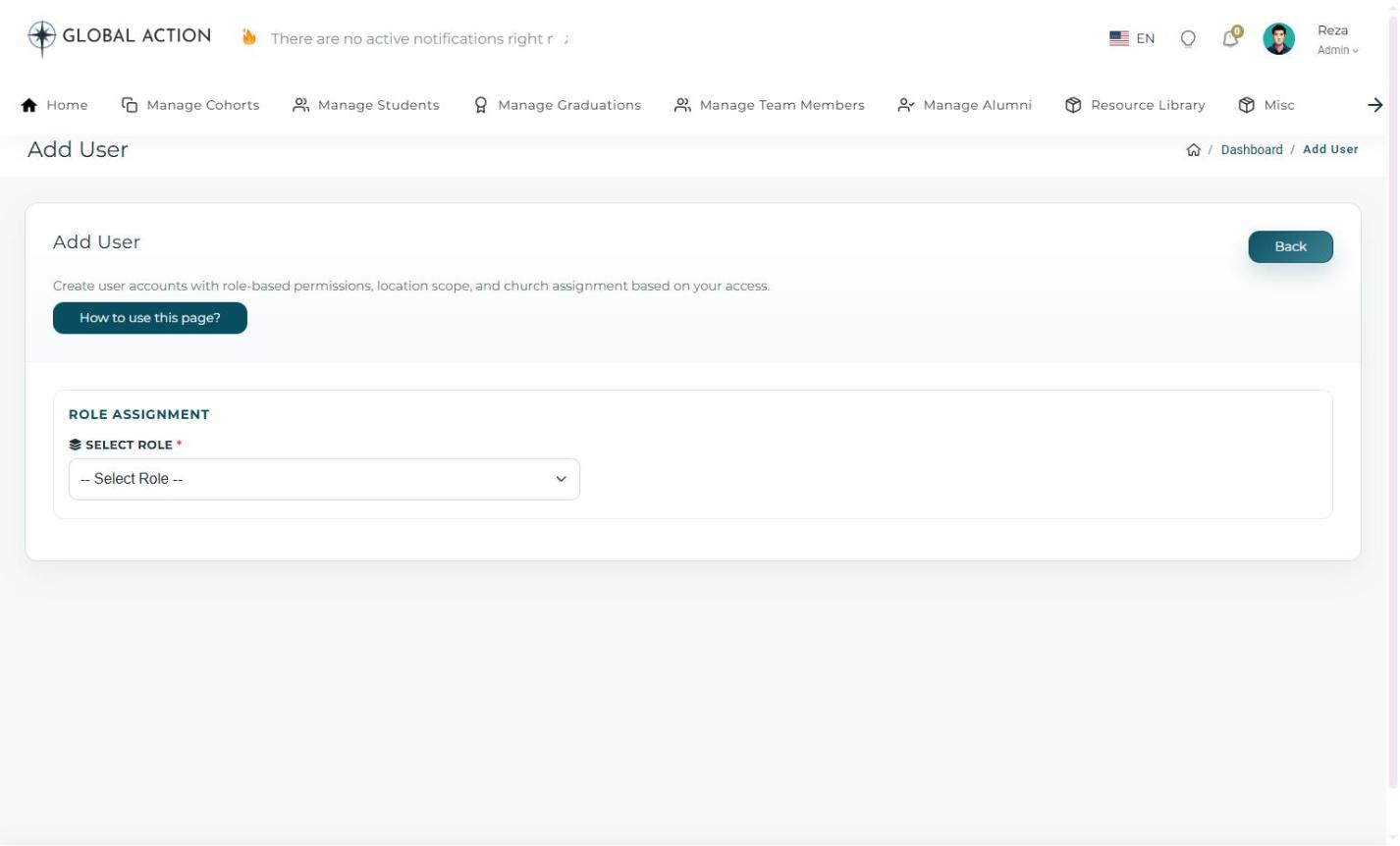 Figure 1. The Add User form after selecting the Coordinators role.
2 Approve Registered Users
Go to Misc > Approve Register User to see everyone who has signed up on their own and is waiting for review. Each row shows their submitted date, role, username, mobile number, and location, along with a Review and Action column.
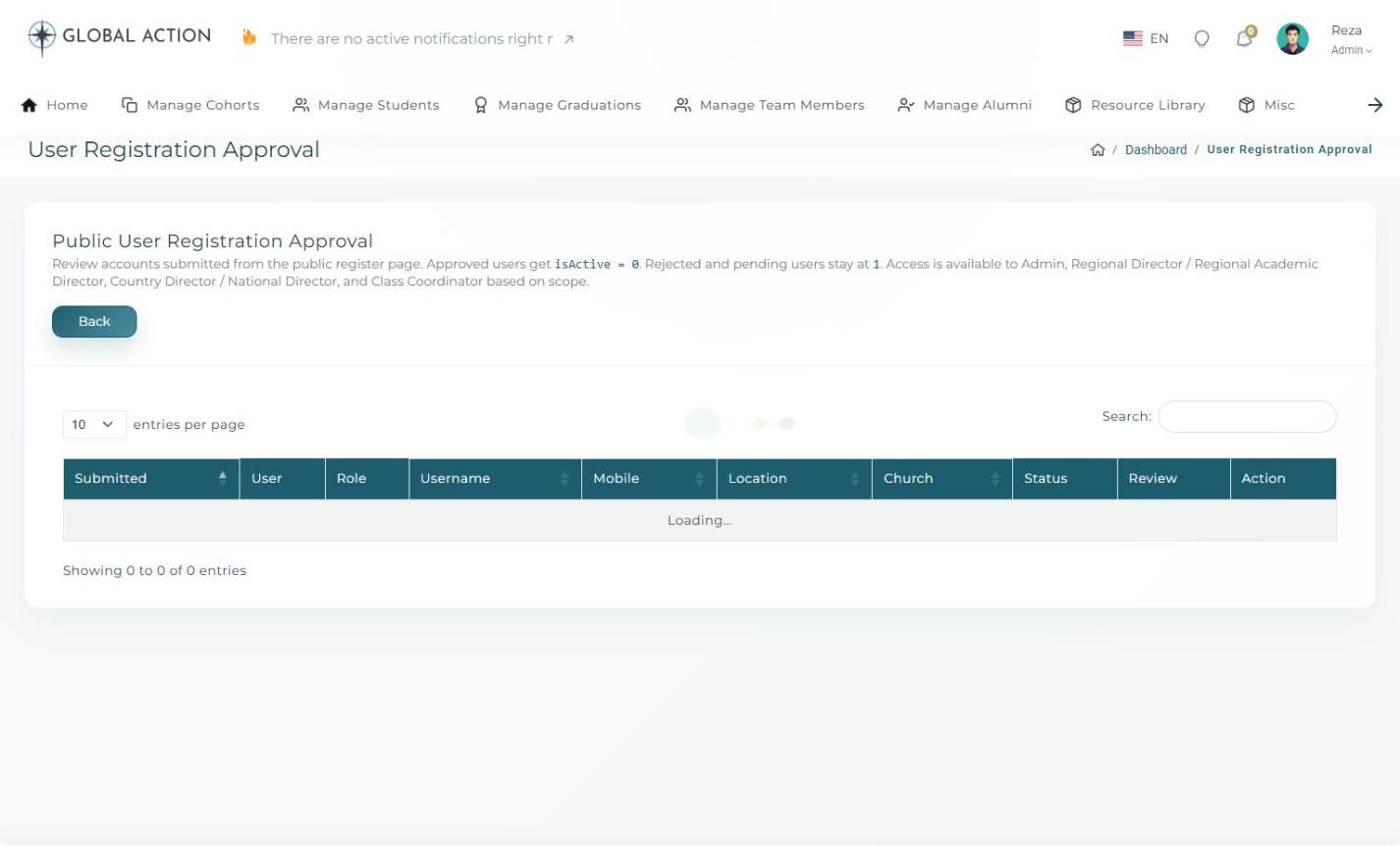 Figure 2. The User Registration Approval table.
3 View the Organizational Chart
Go to Misc > Organizational Chart for a read-only view of how everyone's roles connect to one another.
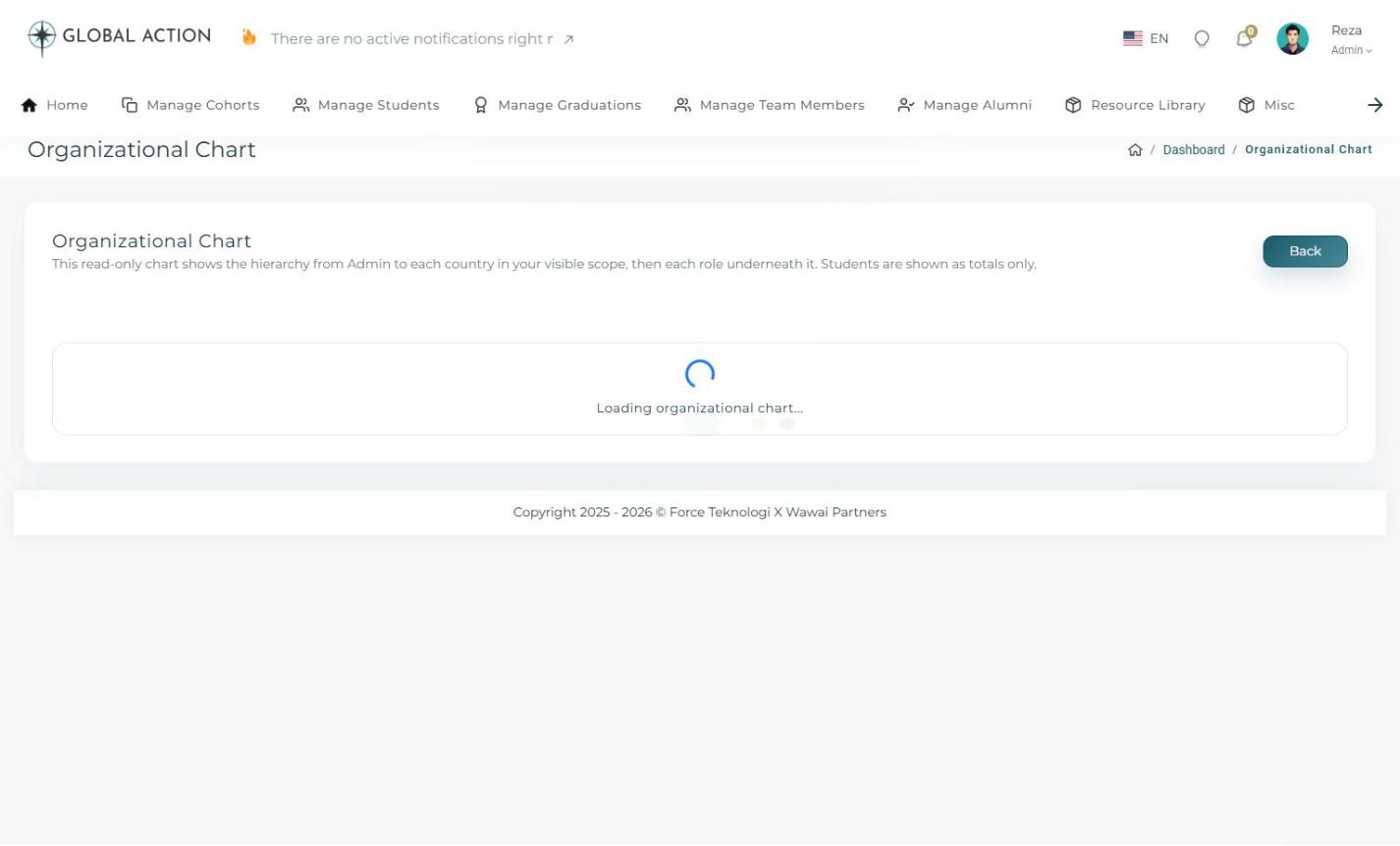 Figure 3. The Organizational Chart view.
Managing Locations, Churches & Ownership
Set up the places and churches that cohorts and students are organized around.
What You Will Learn
- How to add a new location
- How to review all existing locations
- How to add a church and assign a location owner
1 Add a New Location
Go to Misc > Add Location. Start typing the country name in the autocomplete field, and the region, code, and timezone will fill in automatically.
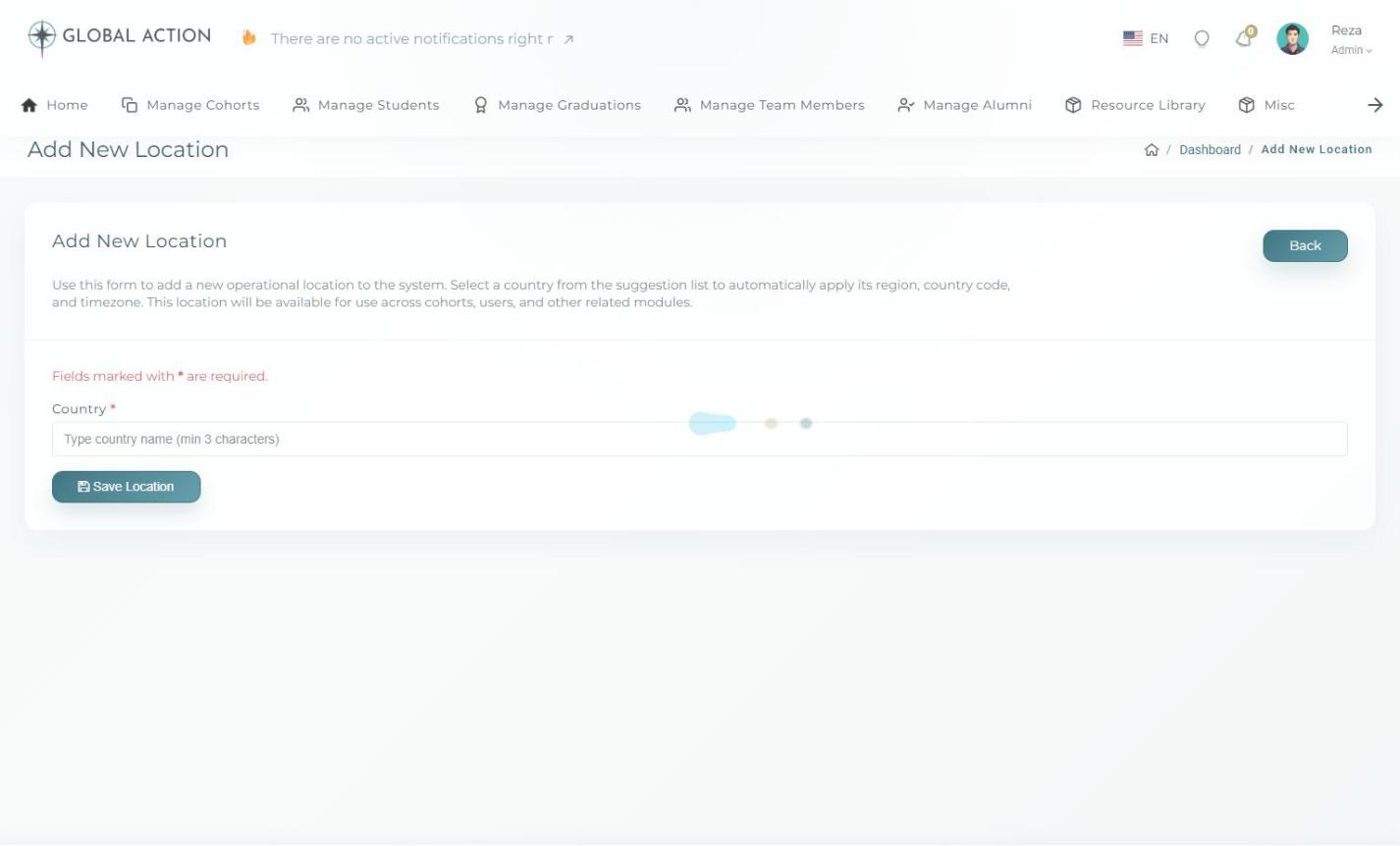 Figure 1. The Add New Location form with country autocomplete.
2 Review All Locations
Go to Misc > All Locations to see every location along with its region, country, code, and timezone. Edit and Delete actions are available for each row.
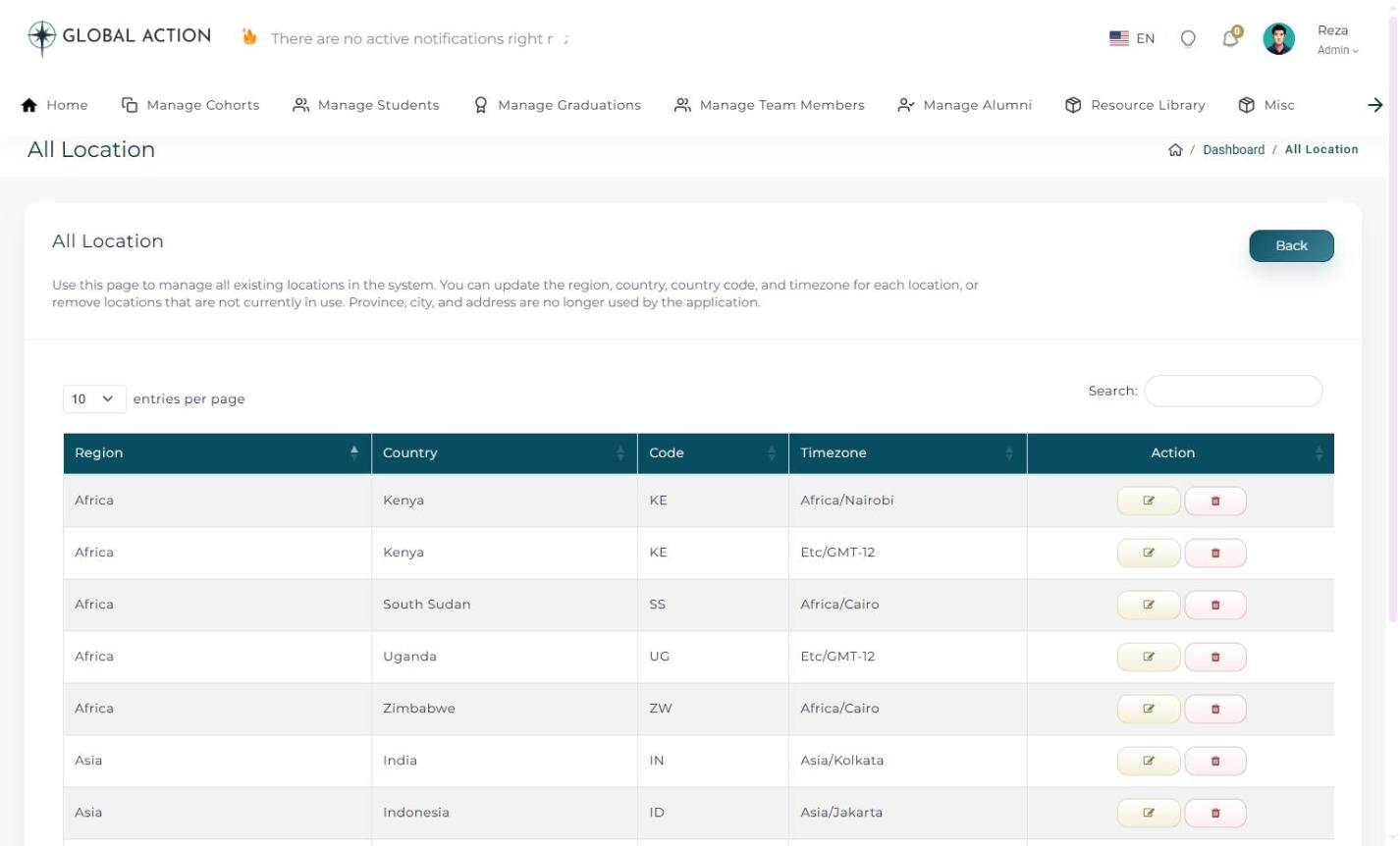 Figure 2. The All Location table.
3 Add a Church
Go to Misc > Add Church. Church Name and Location are required, while details such as Denomination, Pastor, Phone, Email, Website, Google Maps URL, Address, and Notes are optional but helpful to fill in when available.
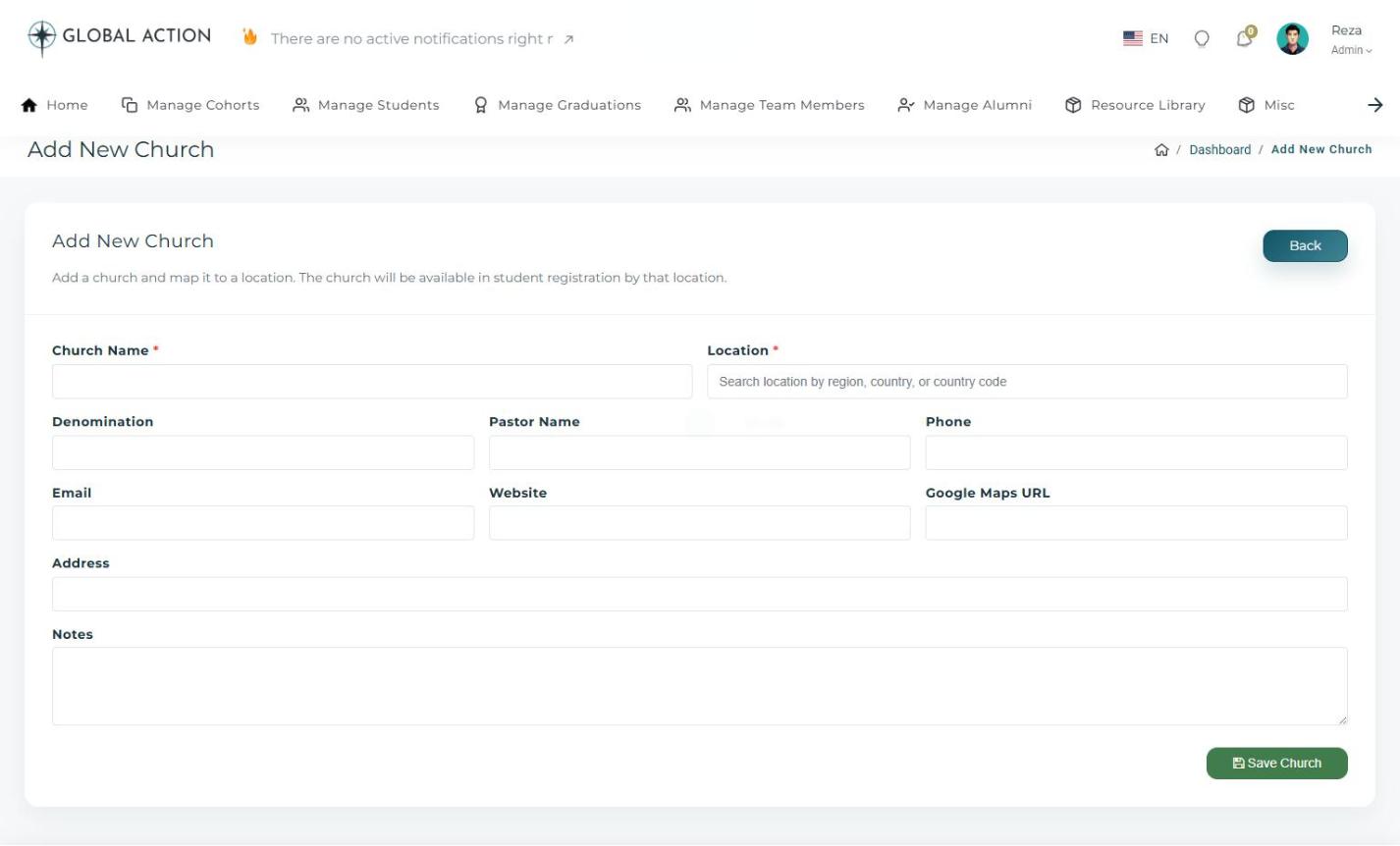 Figure 3. The Add New Church form.
4 Assign a Location Owner
Go to Misc > Location Ownership to assign a default Regional Director or Country Director to a given location.
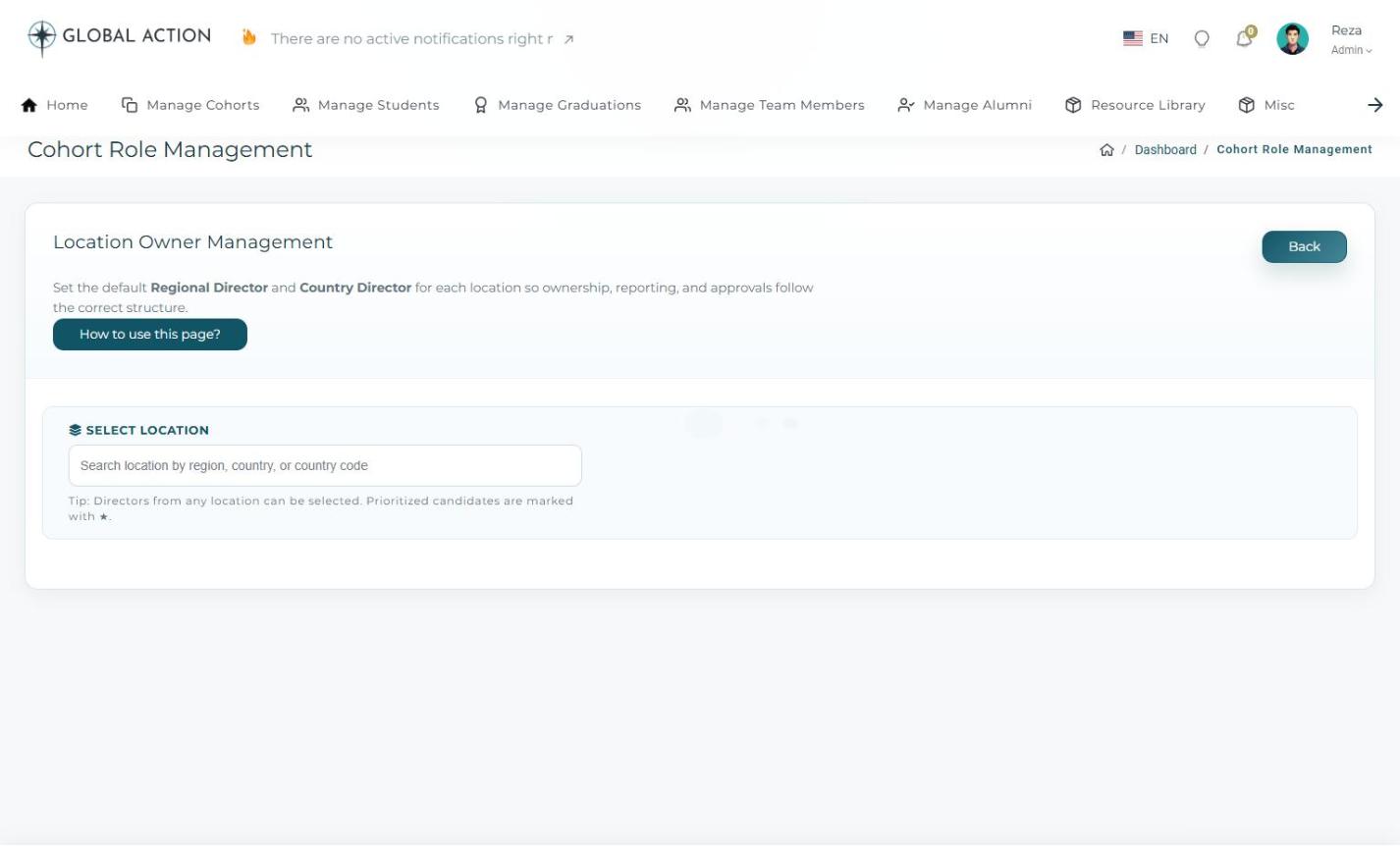 Figure 4. Location Owner Management.
Creating Announcement Notifications
Send announcements to specific roles across the platform.
What You Will Learn
- How to open Notification Settings
- How to read the notification table
- How to add a new notification
1 Open Notification Settings
Go to Misc > Notification Settings, or use the Settings shortcut in your account menu at the top right. Near the top you will see counters for Total, Active, and Inactive notifications, followed by a table listing each one's Title, Target Role, Scope, Publish and Expire dates, Status, and who created it.
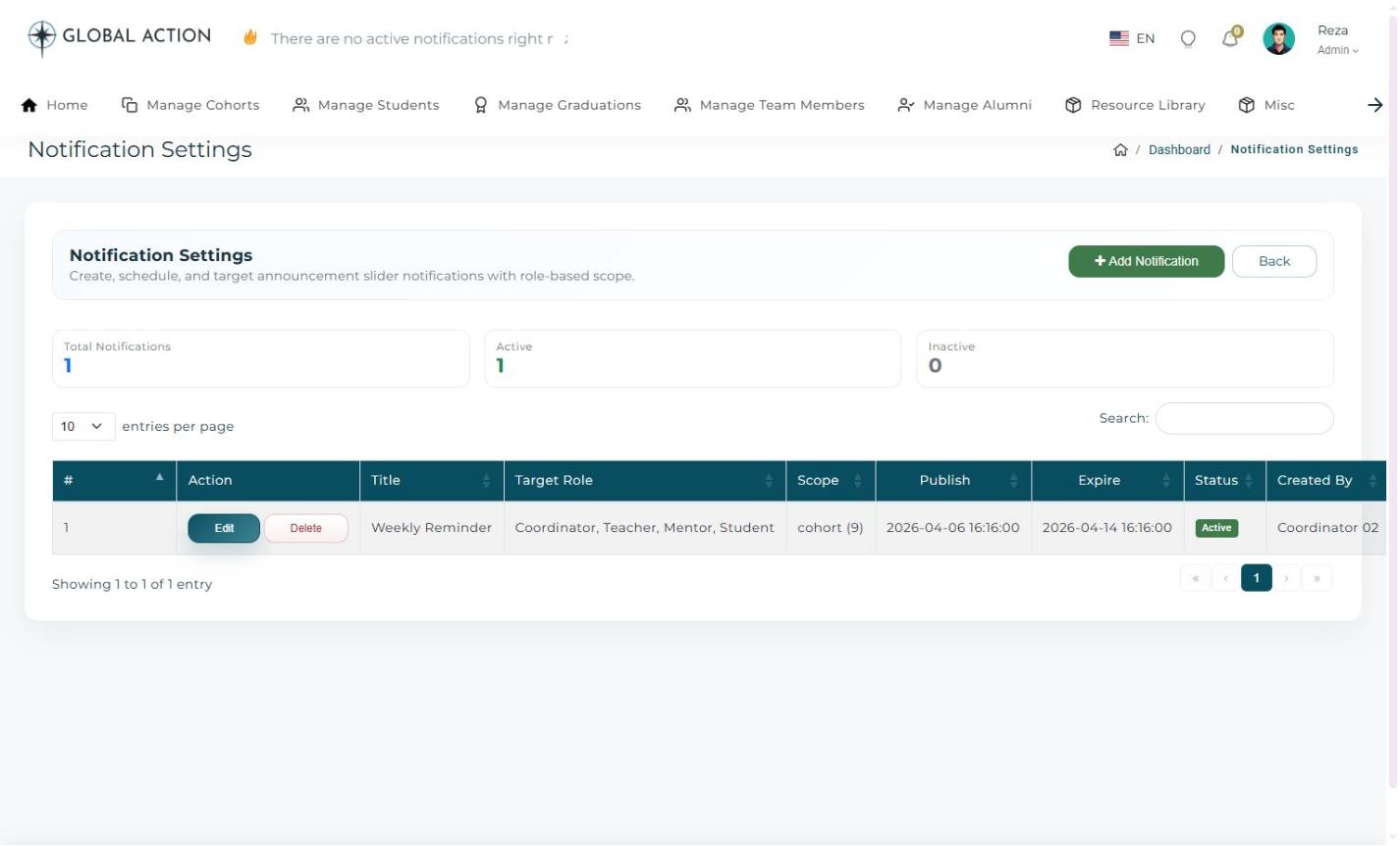 Figure 1. The Notification Settings page.
2 Add a New Notification
Click + Add Notification, choose the target role and scope, write your message, and set a publish and expiration date. Once saved, it will appear for the intended audience automatically.
Certificate Design Settings
Design and manage the certificate templates issued to graduating students.
What You Will Learn
- How to create or import a certificate design
- How to review existing designs
- How to check certificate usage by country
1 Open Certificate Settings
Go to Misc > Certificate Settings. From here you can click + Create New Design to start a fresh template, or Import Design to bring in one that was prepared elsewhere.
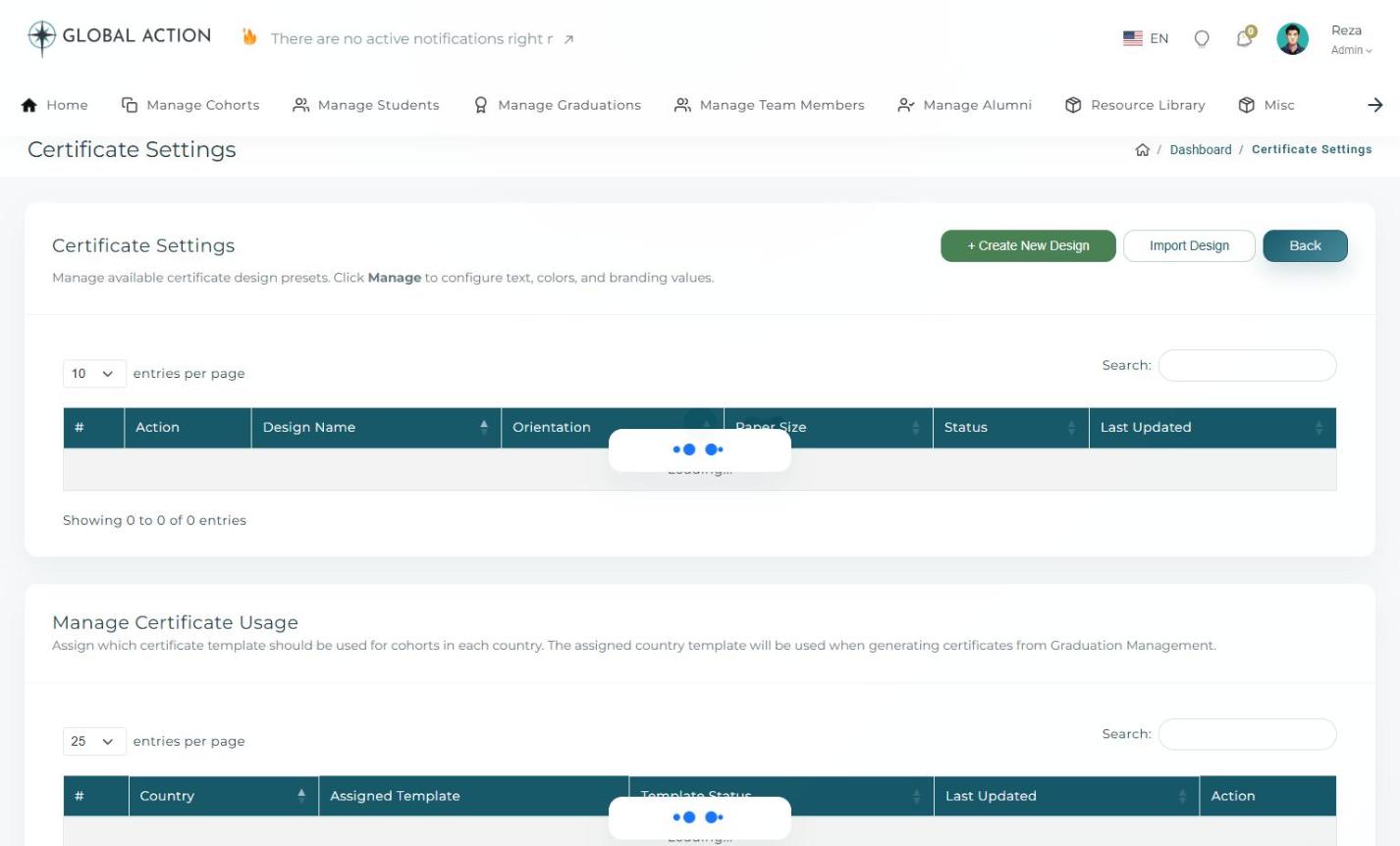 Figure 1. Certificate Settings, including the design table and usage table by country.
2 Review Designs & Usage
The design table lists every certificate template that has been created. Further down, the Manage Certificate Usage table shows which design is being used in which country, which is useful for keeping things consistent across regions.
Managing Course Modules
Create and organize the shared modules that make up a training program.
What You Will Learn
- How to set the module level and location scope
- How to add a new shared module
- How to review existing shared modules
- How to control which roles can update modules
1 Set the Scope
Go to Misc > Manage Modules. Choose the Module Level and Location Scope you want to work with, then click Apply Scope to filter the page to just that scope.
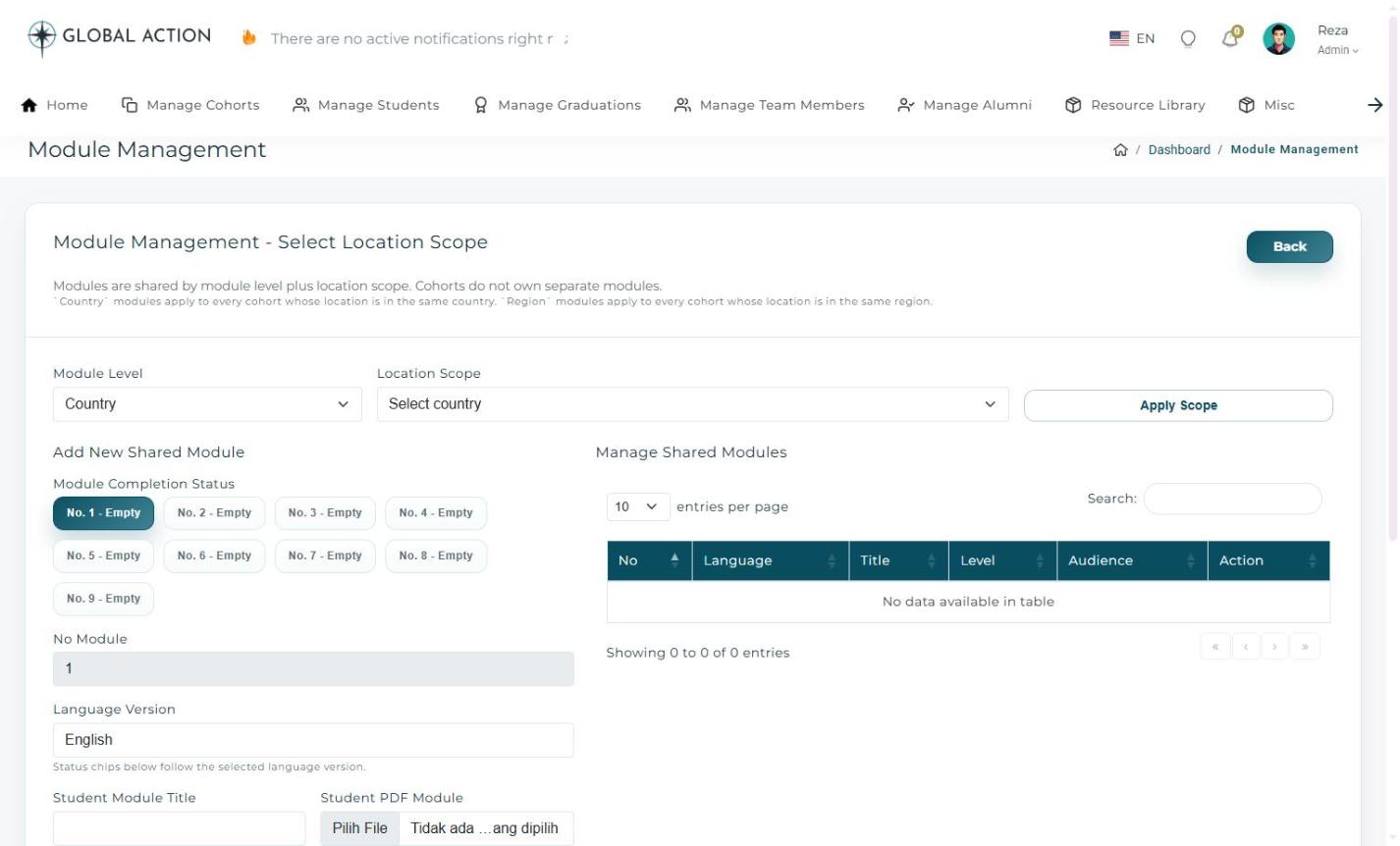 Figure 1. Module Management, with scope selectors and the Add New Shared Module panel.
2 Add a New Shared Module
In the Add New Shared Module panel, set the completion status chips in order (No. 1 through No. 9), give the module a title, and upload the Student PDF Module file for that module.
3 Review Shared Modules
The Manage Shared Modules table below lists every module that has already been created, so you can review or update them as the curriculum evolves. Because modules are shared by level and location, any change here affects every cohort using that same scope.
4 Control Who Can Update Modules
Go to Misc > Module Settings to decide which roles, besides Admin, are allowed to add, edit, delete, or replace module files. Turn on Lock module management and check the roles you want to allow, then click Save Settings.
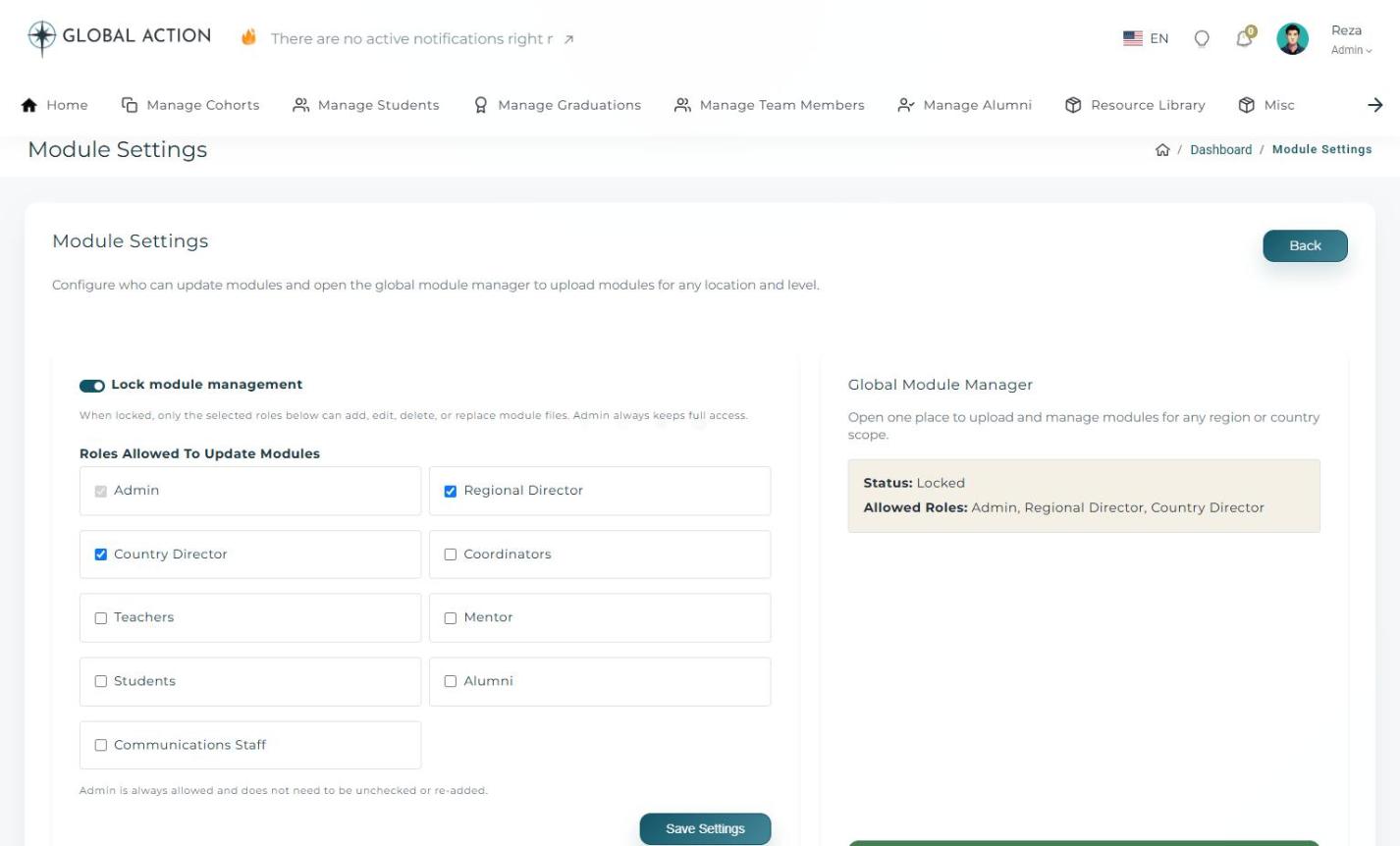 Figure 2. Module Settings, showing which roles are allowed to update modules.
Controlling Who Can Create Cohorts
Decide which roles are allowed to create new cohorts.
What You Will Learn
- How to open Cohort Access Settings
- How to update which roles can create cohorts
- Where to find the current access summary
1 Open Cohort Access Settings
Go to Misc > Cohort Access. You will see a checkbox for each role; by default, Admin, Regional Director, Country Director, and Coordinators are checked.
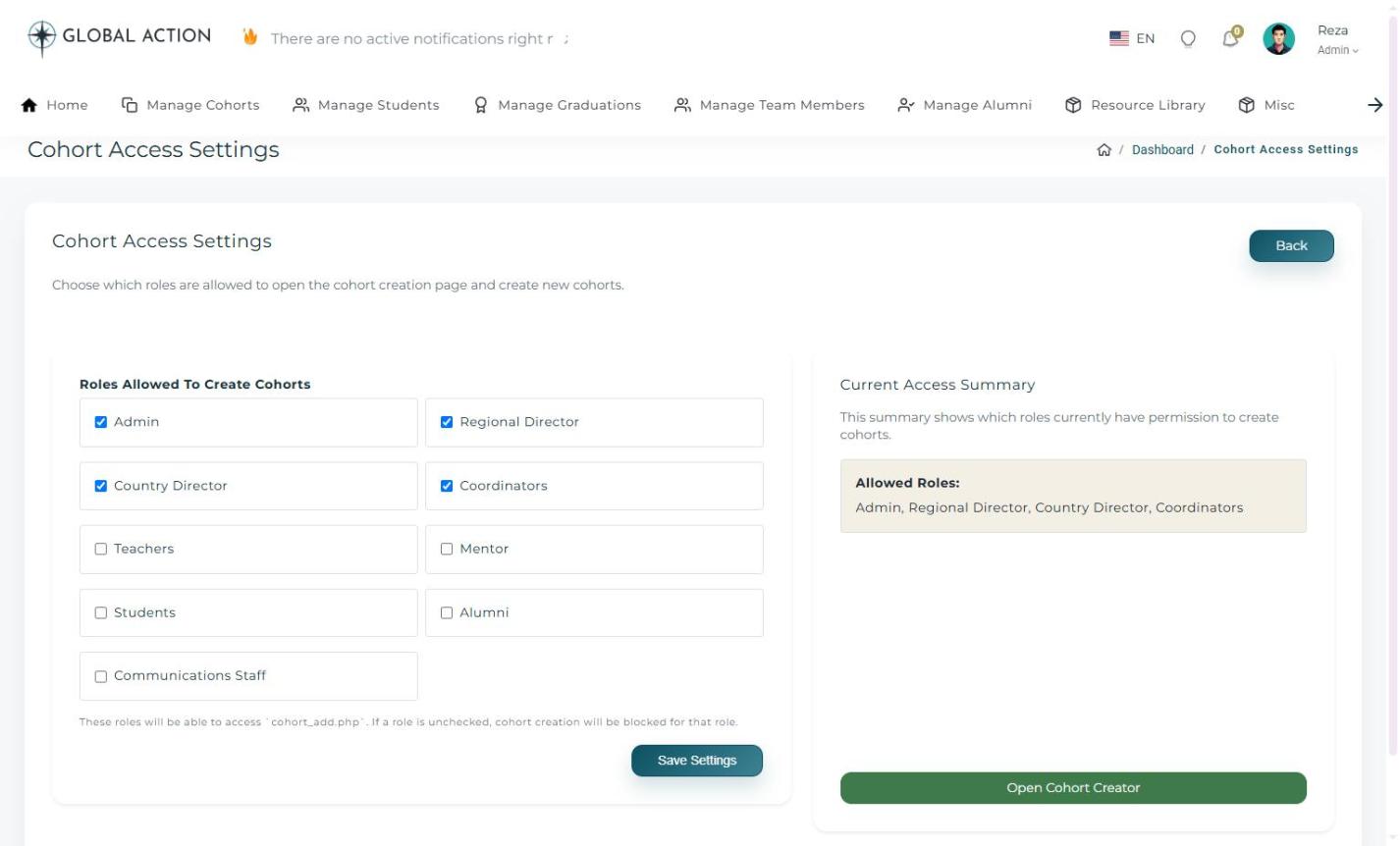 Figure 1. Cohort Access Settings, with role checkboxes and a current access summary.
2 Save Your Changes
Check or uncheck roles as needed, then click Save Settings. The Current Access Summary below will update to reflect the change. From this page you can also click Open Cohort Creator to jump straight into creating a cohort.
SEO & AI SEO Settings
Configure how the platform appears in traditional search engines and in AI-powered answers.
What You Will Learn
- How to update core SEO metadata and social previews
- How to control search engine indexing
- How to review AI search readiness settings
1 Core Metadata & Indexing
Go to Misc > SEO Settings. Here you can set the Site Name, Default Meta Title and Description, Default Keywords, and Canonical URL, along with Robots Index and Follow behavior. The Search Engine Indexing section lets you allow all search engines, block indexing entirely, or allow only specific engines such as Google or Bing.
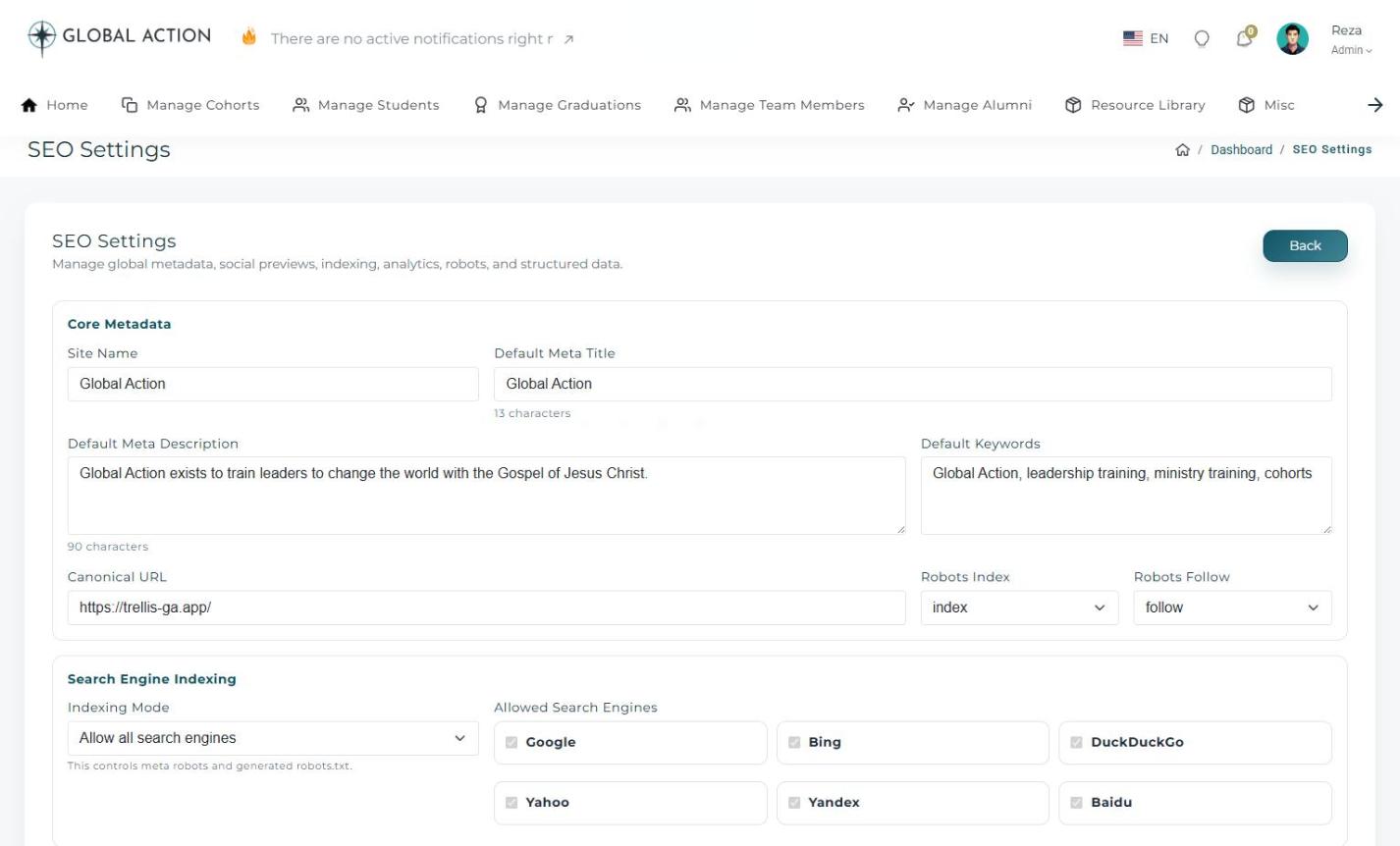 Figure 1. SEO Settings, showing core metadata and search engine indexing controls.
2 Social Previews & Analytics
Further down the same page, you can set Open Graph and Twitter Card details so links preview nicely on WhatsApp, Facebook, X, Pinterest, and LinkedIn. The Verification & Analytics section holds your GA4 Measurement ID, Google Tag Manager ID, and site verification codes, and the Crawl Files & Structured Data section lets you edit the sitemap URL, robots.txt content, and Schema JSON-LD. Click Save SEO Settings when you are done.
3 AI SEO Settings
Go to Misc > AI SEO Settings to tune how AI systems discover and cite your content. The page is organized into stages: Generative Engine Optimization, Retrieval-Augmented Generation, Semantic, Schema, Chunking & Re-ranker, and Results.
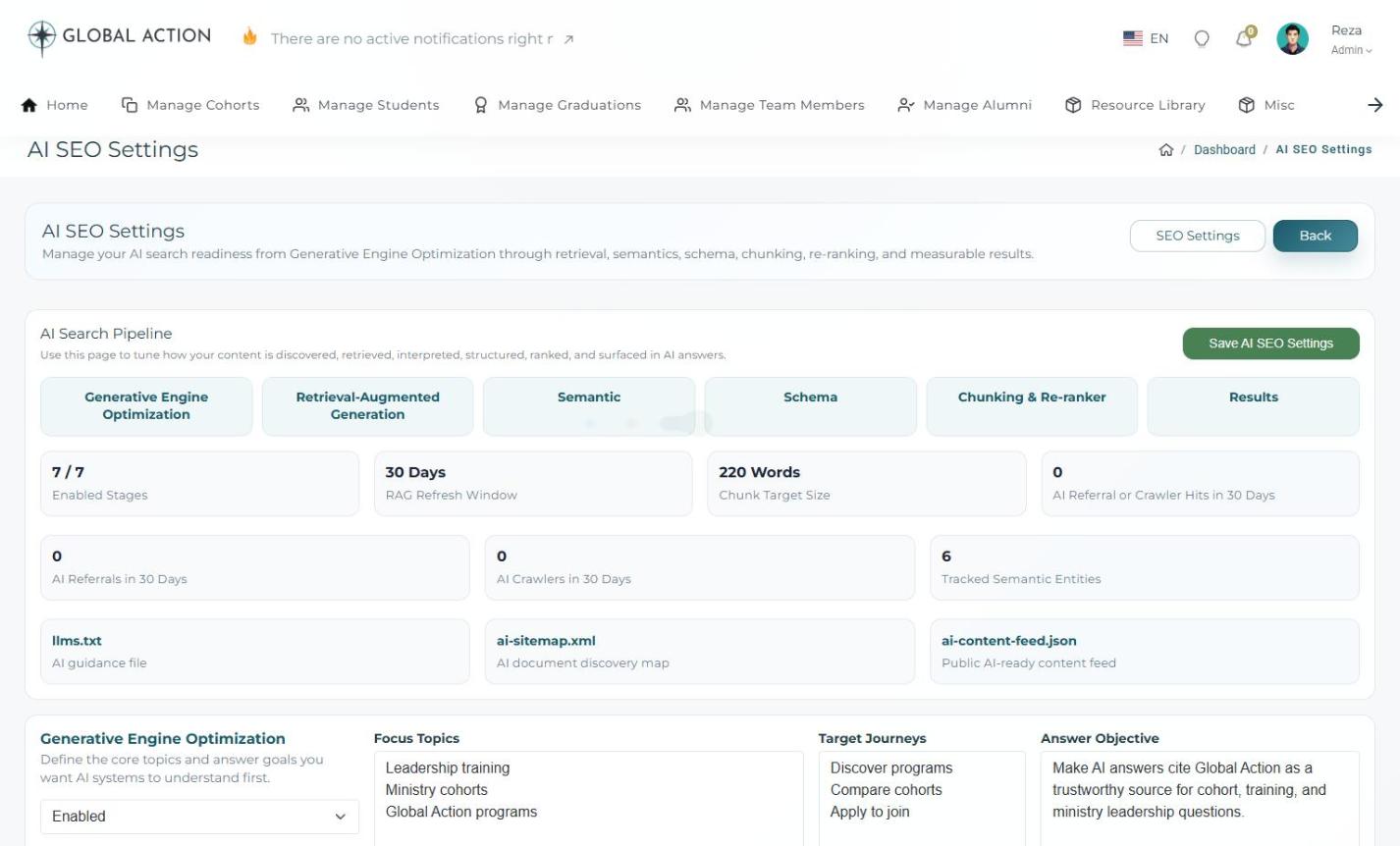 Figure 2. AI SEO Settings, showing the AI Search Pipeline stages and summary metrics.
Email Delivery Settings
Configure the outgoing mail server, manage email templates, and turn system emails on or off.
What You Will Learn
- How to configure the outgoing mail server
- How to edit email templates
- How to turn individual system emails on or off
1 Configure the Outgoing Mail Server
Go to Misc > SMTP Settings. Enable SMTP and fill in the Mailer, Port, Encryption, Host, Username, and Password for your outgoing mail server. Optional Incoming Mail Server sections for IMAP and POP3 are available if you want to document those connection details as well. A Delivery Summary panel on the right lets you test enabled connections before saving.
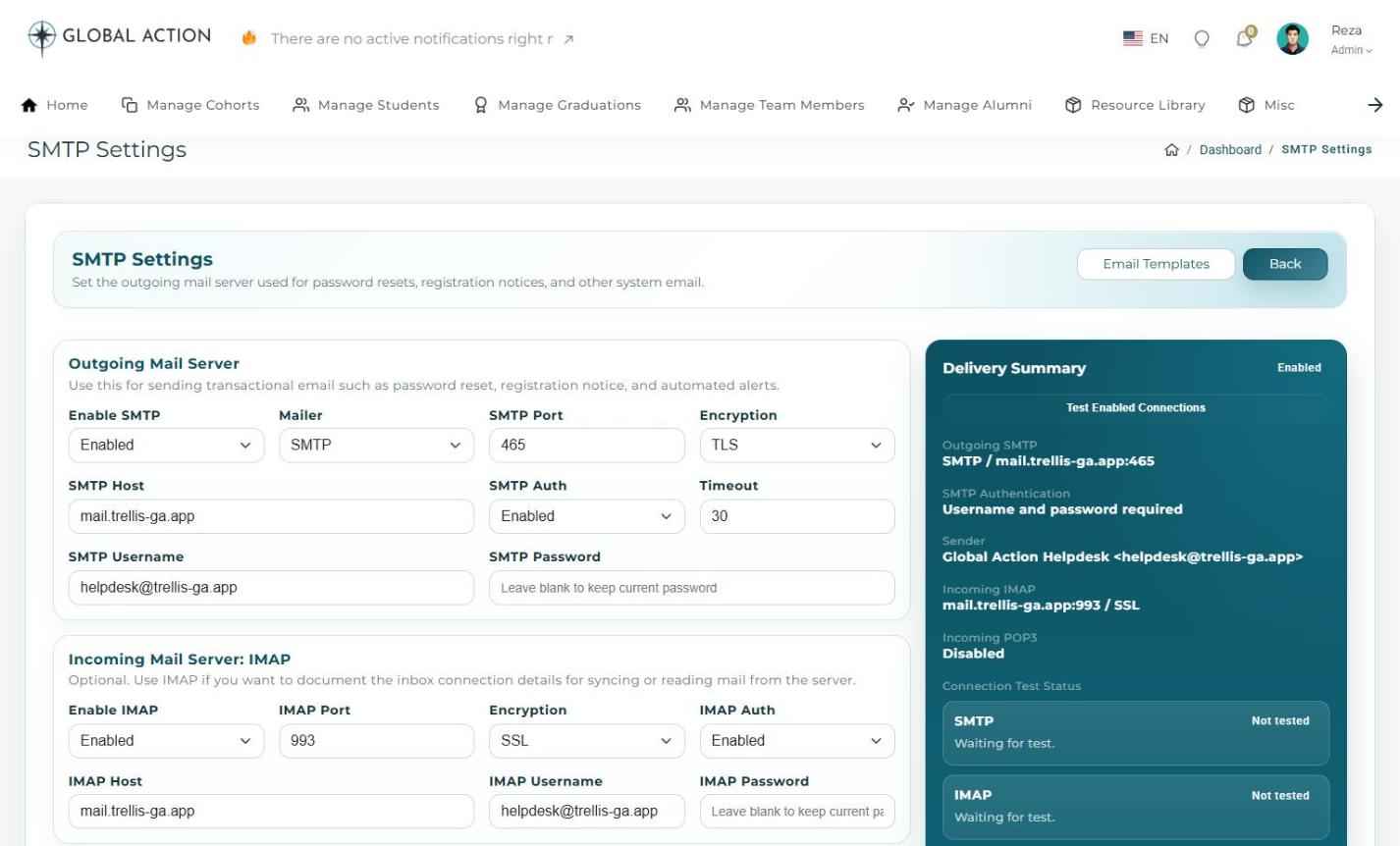 Figure 1. SMTP Settings, with outgoing and incoming mail server fields and a delivery summary.
2 Manage Email Templates
Go to Misc > Email Template Manager to see every reusable email layout, such as Password Reset, Registration Notice, Cohort Approval Notice, and Certificate Issued or Revoked Notice. Click Edit next to a template to customize its content, or Create New Template to add one for a new use case.
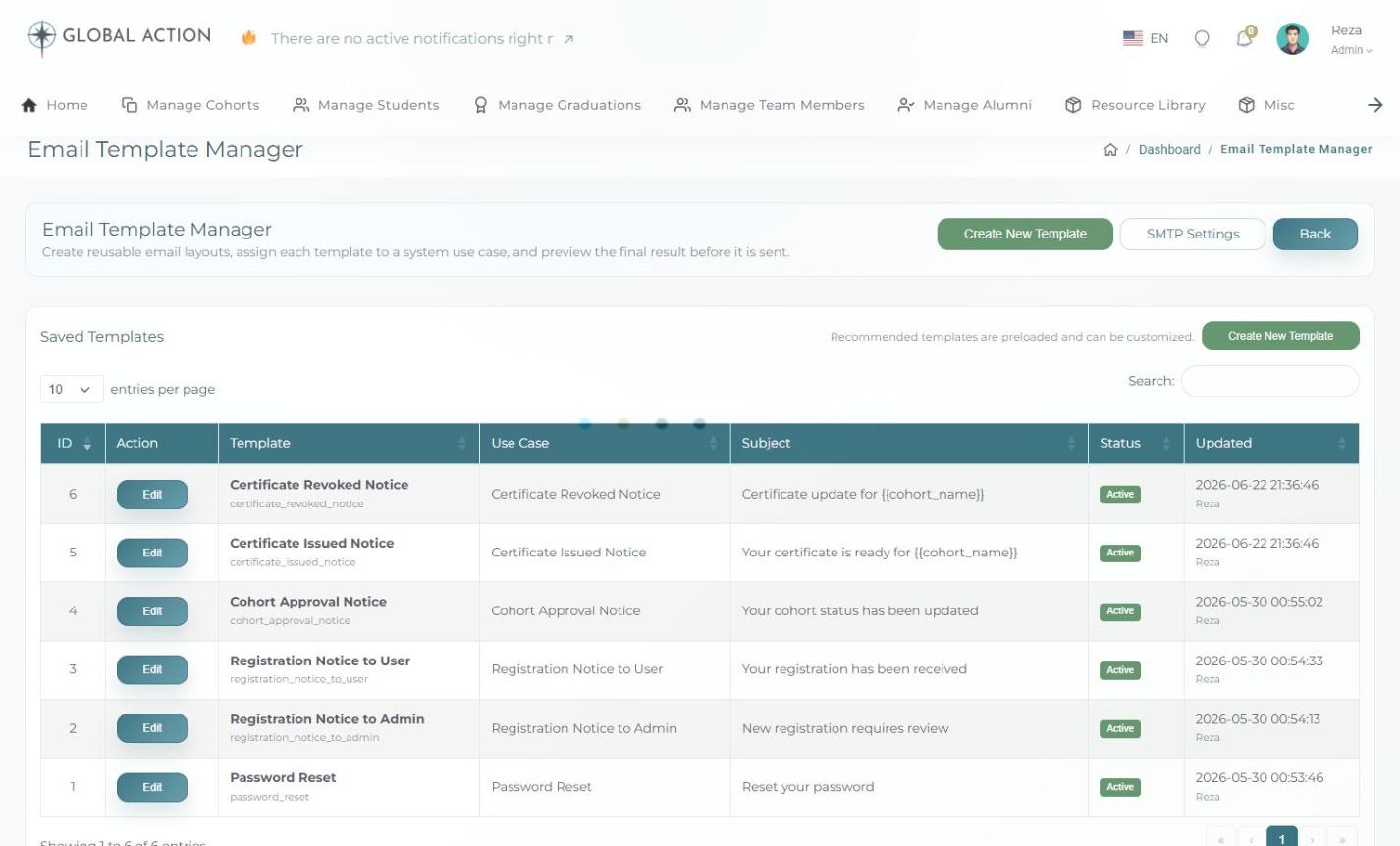 Figure 2. Email Template Manager, listing recommended templates and their use cases.
3 Turn Emails On or Off
Go to Misc > Email Feature Switches to enable or disable each system email individually. If a switch is disabled, the platform will simply skip sending that particular email type, which can be useful while testing or during a migration.
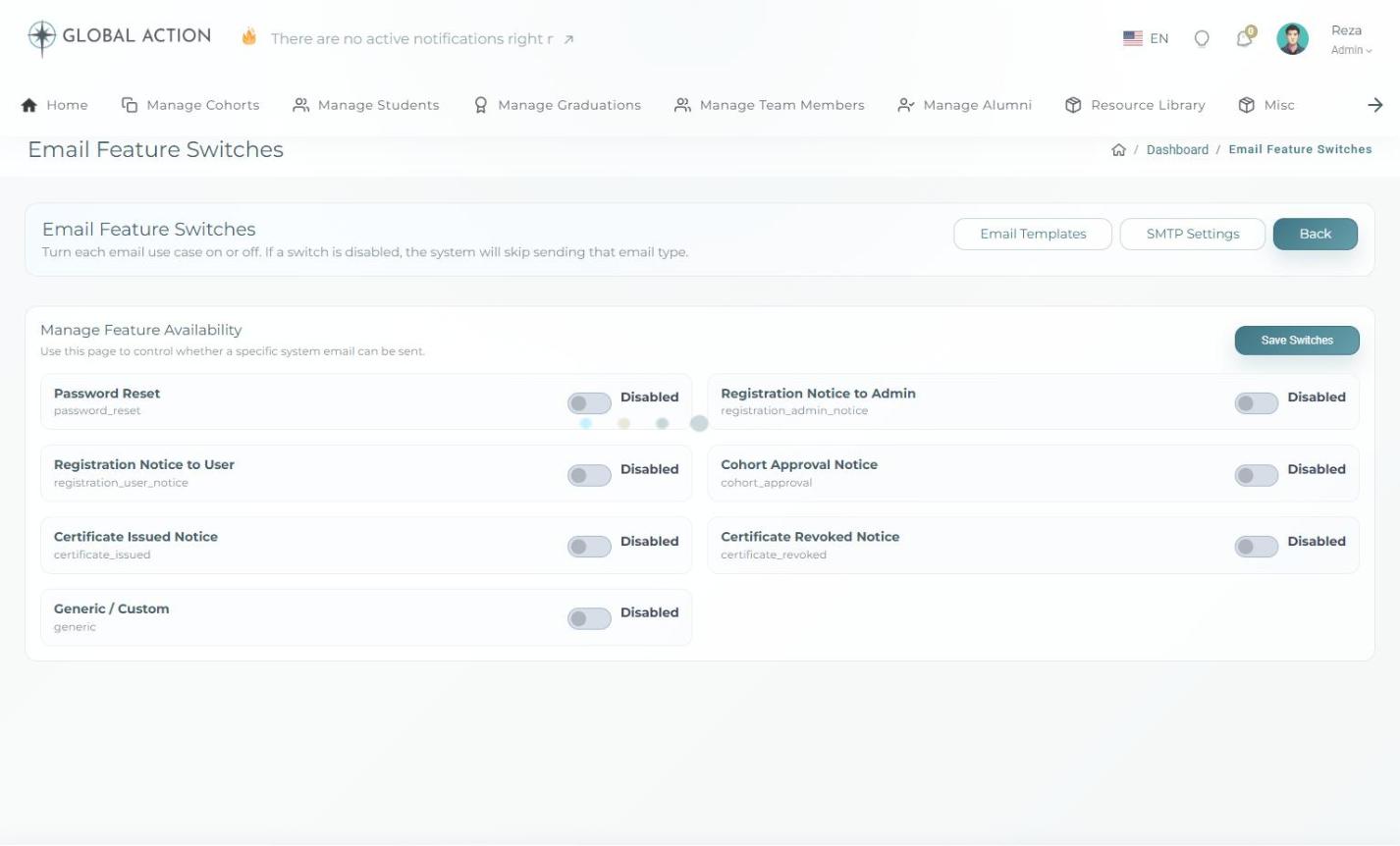 Figure 3. Email Feature Switches, showing each email use case with its own on/off toggle.
Viewing & Editing Your Profile
Manage your own personal profile information.
What You Will Learn
- How to open your profile
- What information is shown
- How to update your profile photo
1 Open Your Profile
Click your name in the top-right corner of any page, then choose Account from the menu. This opens your personal profile page.
2 Review Your Information
Your profile displays your email, date of birth, contact number, assigned location, and church, along with your name and role. This is the same layout used for student and team member profiles elsewhere in the platform.
3 Update Your Photo
Hover over your profile photo and click the small pencil icon to upload a new one.